
Digital Marketing
·
April 10, 2026
How SaaS Companies Handle Billing Disputes & Chargebacks
Learn how SaaS billing disputes happen, what triggers chargebacks, and how both sides can resolve them faster.

Set up HubSpot properties and workflows, automate job-change detection with KeepSync, and convert former users into new PLG revenue.

When someone who already trusts your product changes jobs, it’s a missed opportunity if you’re not tracking it. Job change tracking in HubSpot helps Product-Led Growth (PLG) companies reconnect with these contacts at their new companies, where they can advocate for your product. Why does this matter? Past buyers are 5x more likely to convert than cold leads, and new executives spend 70% of their budget within the first 90 days. Without automation, these opportunities often slip through the cracks.
Here’s how it works:
To effectively track job changes, it's crucial to configure your HubSpot CRM with the right custom properties, segments, and lists. This setup allows you to automate alerts and identify job change opportunities in real time. Here's how to get started.
While HubSpot includes standard fields like Job Title, Company Name, and Email, you'll need to add a few custom properties for job change tracking. Start by creating a Job Change Detected Date (date format) to log when a contact's role or employer changes. Add a Previous Company field (text format) to keep a historical record of past employers before new data replaces the old.
For teams using workflows, consider adding a Job Title Last Updated property. As HubSpot employee jleow notes:
"The 'Set property value' action on a workflow can be an incredibly useful tool to log the date of change on a specific property"[8].
To automate this, set up a workflow with the enrollment trigger "Job Title is known." Enable re-enrollment and use the "Set property value" action to update your custom date property with the "Date of step." This ensures the timestamp refreshes with every job change.
If you're on HubSpot Enterprise, you can take advantage of Property Change Events to capture precise timestamps and even identify whether the update was made by a user or an integration like KeepSync. Keep in mind that workflows using "Set property value" require a Professional or Enterprise subscription, and Property Change Events are capped at 25 per account[4].
Once these properties are in place, you can move on to segmenting your contacts.
Not every contact needs the same level of attention. Focus on high-value segments like paying customers, power users, and evangelists - those who are likely to promote your product in their new roles[9]. These groups should be organized into active lists within HubSpot.
To prioritize these champions, filter your contacts by criteria like "Lifecycle Stage is Customer" or "Lifecycle Stage is Evangelist." This ensures you're targeting individuals who already trust your product[9]. Additionally, consider creating a "stale records" list to identify contacts whose Job Title Last Updated property hasn't been updated in over 270 days (roughly nine months). José Pedro Forte, RevOps Manager at Infraspeak, suggests:
"You create an active list that checks who are contacts that don't have the property updated in the last 9 months. That list would be used to target those side-pops and then something simple as 'Hey [first name], are you still working for [company name] as [job title]'"[2].
If a contact's lifecycle stage changes from Customer to Lead, make sure to clear the previous lifecycle stage value before applying the new one; otherwise, HubSpot won't accept the update[9].
After segmenting your contacts, the next step is building lists and views to keep job change data accessible.
To stay on top of job changes, create active lists that update automatically as contact records meet or no longer meet your criteria. For instance, you can build a list where both Job Change Detected Date and Previous Company are known, allowing you to quickly identify contacts who have recently moved roles.
You can also refine your lists by filtering contacts based on their company's Lifecycle Stage or Company Name. If you're using a Professional or Enterprise plan, leverage association labels to focus on "Primary" contacts at customer accounts, ensuring you track the most influential job changes[10].
While static lists provide a one-time snapshot, active lists are better suited for ongoing tracking. They enable proactive outreach and seamless integration into workflows, keeping your team ready to act on job change opportunities as they arise.
Manual vs Automated Job Change Tracking Comparison for PLG Companies
Tracking job changes manually just doesn’t cut it for PLG companies. When you’re dealing with hundreds or even thousands of contacts, keeping everything up to date becomes a daunting, time-consuming task. That’s where automation steps in, making it possible to manage this process efficiently. By shifting from manual tracking to an automated solution like KeepSync, you can streamline the entire workflow and ensure your data stays accurate.
Before diving into automation, you’ll need to tweak HubSpot to handle job change alerts effectively. Start by creating a Primary Company ID custom property. This lets you sync the Record ID from the primary company tied to each contact[3]. Why does this matter? It allows workflows to detect when someone moves from one employer to another.
Next, set up two association labels: Former Employer/Employee and Current Employer/Employee. These help maintain a clear employment history for each contact[3]. While HubSpot workflows can’t programmatically update "Primary" association labels, using the Primary Company ID as a trigger can help you work around these limitations.
Once HubSpot is ready, KeepSync takes over to handle the heavy lifting. It uses the custom properties you set up to instantly detect job changes and update your data. By monitoring LinkedIn URLs and pulling data from 30+ sources, KeepSync identifies changes in job titles and companies with an impressive 94% accuracy.
Here’s where it gets even better: KeepSync can automatically refresh key HubSpot fields and create tasks for the contact owner. These tasks include all the context you need about the contact’s previous and new roles. You can also configure it to use custom objects for advanced reporting and apply filters to focus on high-value changes, like those involving your ICP or key personas[1][6].
This is particularly useful for tracking PLG champions - those power users who move to new companies and could advocate for your product. For example, if a former CMO lands a similar leadership role at a target company, that’s a golden opportunity to reach out. On the flip side, if their new role is unrelated, you can filter it out to avoid wasting time on irrelevant leads.
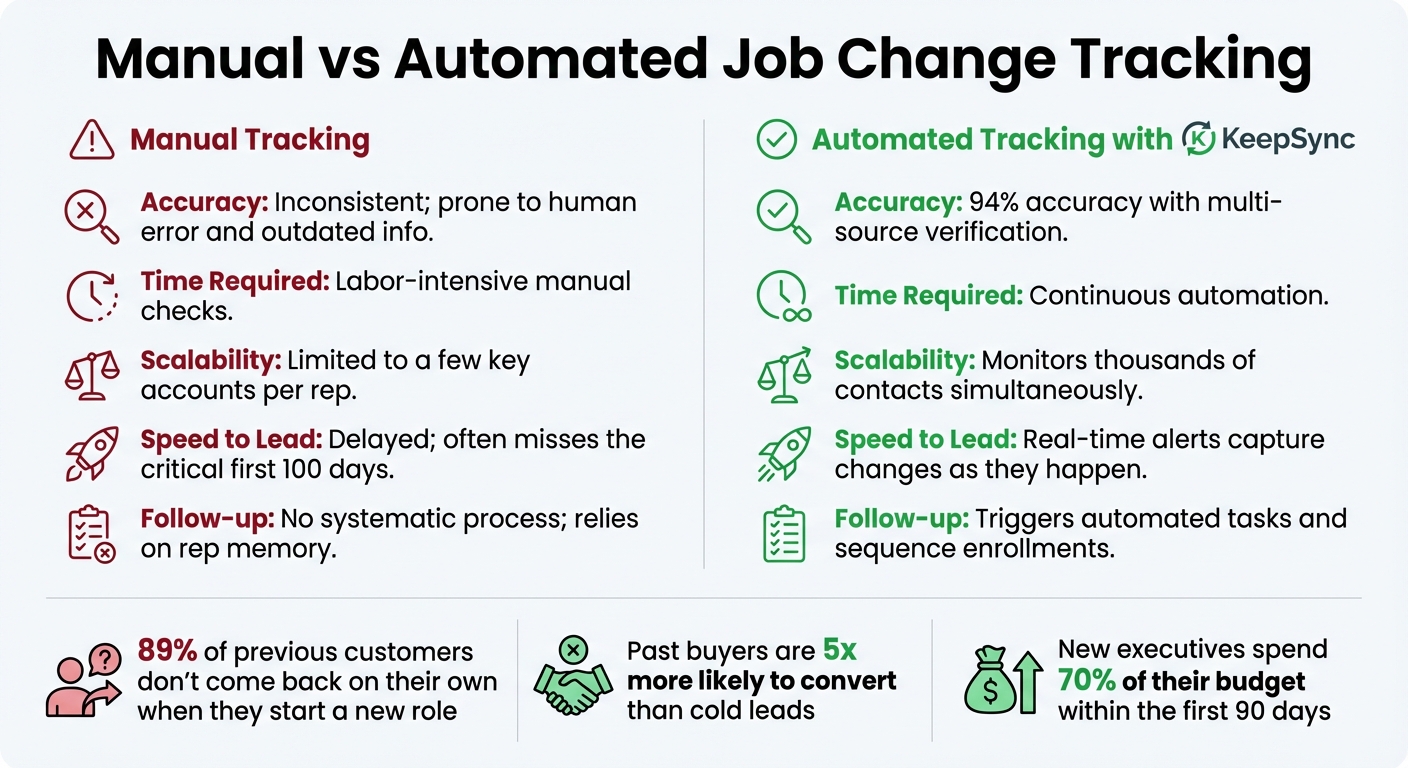
The gap between manual and automated job change tracking is massive. Stuart Balcombe from ConnectedGTM nails it when he says, "89% of previous customers don't come back on their own when they start a new role." Without automation, you’re stuck relying on inconsistent LinkedIn checks, which just don’t cut it.
| Feature | Manual Tracking | Automated Tracking with KeepSync |
|---|---|---|
| Accuracy | Inconsistent; prone to human error and outdated info | 94% accuracy with multi-source verification |
| Time Required | Labor-intensive manual checks | Continuous automation |
| Scalability | Limited to a few key accounts per rep | Monitors thousands of contacts simultaneously |
| Speed to Lead | Delayed; often misses the critical first 100 days | Real-time alerts capture changes as they happen |
| Follow-up | No systematic process; relies on rep memory | Triggers automated tasks and sequence enrollments |
Balcombe also highlights that past buyers are 5x more likely to convert into closed-won revenue than cold leads. Plus, new executives typically spend 70% of their budget within their first three months. Automated tracking ensures you can engage these high-intent contacts during their most critical decision-making period - something manual processes almost always miss.
Incorporating job change data into your HubSpot workflows can help you quickly trigger actions that drive revenue. Below, we’ll explore how to set up job change triggers, apply them to product-led growth (PLG) scenarios, and create personalized outreach strategies.
Setting up workflows that respond instantly to property updates is a great way to act on job change data. For example, when KeepSync updates a contact's Job Title or Company Name fields, HubSpot can automatically enroll them into a workflow. This ensures your automation stays current and responsive to new opportunities.
A simple way to start is by creating a workflow that checks if the contact’s new company matches your ideal customer profile (ICP) - criteria like industry or employee count can be useful here. If the contact qualifies, the workflow can:
For more advanced setups, you can use event-based triggers through KeepSync webhooks. This allows you to act in real time, especially during the critical first three months of a contact's new role, when they may be allocating up to 70% of their budget [1]. Additionally, enabling re-enrollment ensures contacts are reprocessed if they change jobs again later in their careers [11].
Tracking job changes opens up a range of PLG strategies. Here’s how you can put it to work:
Champion Tracking
This strategy focuses on monitoring when your power users move to new companies. Taimoor Tariq, Lead at Clay Club Berlin, shared how Blinkist uses this approach. Their workflow identifies customers without LinkedIn profiles, enriches their data using GPT-4o and LinkedIn models, and tracks company changes. When a contact joins a company with over 100 employees, the system pulls their past product usage data from HubSpot and uses Claude AI to create personalized outreach. These messages are sent to Slack for approval before being deployed through HubSpot sequences and LinkedIn via HeyReach [7].
"The logic is simple: when a customer moves to a new company, they bring their positive experience with your product along with them. They're your best advocates, already familiar with your value proposition."
- Taimoor Tariq, Lead at Clay Club Berlin
Re-engaging Closed-Lost Opportunities
When a new decision-maker joins a company where you previously lost a deal, it’s a chance to reintroduce your product. For example, a workflow can trigger when someone with a key title (like VP of Marketing or Head of Product) joins a company in your "Closed-Lost" deal stage. This can help you reconnect and potentially revive the opportunity.
Free-to-Paid Conversions
If a user from a free-tier account moves to an ICP-aligned company, it’s a golden opportunity to convert that organization to a paid plan. By tracking these transitions, your workflow can notify the sales team with details about the contact's previous usage patterns, paving the way for a warm introduction.
Here’s a quick breakdown of how these strategies translate into actionable workflows:
| PLG Strategy | HubSpot Workflow Trigger | Key Workflow Action |
|---|---|---|
| Champion Tracking | Intent Object Created (Job Movement) | Enroll in "Former Customer" Sequence |
| Account Expansion | Contact Property Change (Job Title) | Notify Account Manager |
| New Exec Entry | New Hire Detected at Target Account | Send Slack Alert to Sales Rep |
| Closed-Lost Re-entry | Contact Property Change (Company Name) | Create Deal & Notify Original Owner |
Once workflows are triggered, it’s time to craft tailored outreach that turns job changes into opportunities. Avoid sending generic messages - personalization is key. Use HubSpot's personalization tokens to reference details like the contact’s previous company, the key features they engaged with, and the length of their relationship with your product.
Dig deeper into internal data to strengthen your outreach. For example, check whether the contact was the primary point of contact at their old company and what products they used. If someone else was the main contact, mentioning their name can add credibility to your message.
For high-value contacts, a human-in-the-loop approach can work wonders. Configure your workflow to send a draft message to Slack with all relevant details - like their previous role, new role, and past product usage - along with an AI-generated personalized message. This allows your sales team to review and fine-tune the outreach before it’s sent.
Finally, coordinate your efforts across multiple channels. If you’re using both HubSpot email sequences and LinkedIn outreach, ensure that a response on one platform automatically unenrolls the contact from the other sequence to avoid redundancy. Instead of relying solely on job titles, which can be misleading, use AI tools to analyze LinkedIn profiles and classify contacts into PLG-relevant personas (e.g., "HR Leader" or "Strategic Leader"). This ensures your messaging aligns with their actual responsibilities, not just their title.
Tracking performance is a must if you want to get the most out of your HubSpot and KeepSync job change tracking program. By using HubSpot's reporting tools alongside KeepSync's analytics, you can gather the data needed to evaluate results and fine-tune your strategy for better outcomes and higher ROI.
To start, set up Property Change Events in HubSpot to log updates when a contact’s Job Title or Company Name changes. These events capture details like the timestamp and the source of the update - whether it’s from KeepSync, a workflow, or manual entry [4]. Keep in mind that HubSpot limits each account to 25 property change events and imposes a monthly cap of 30 million occurrences [4].
With HubSpot's Custom Report Builder, you can link job change data to deal data, making it easier to attribute revenue to these updates [12]. Use standard deal properties such as Amount, Weighted amount, and Is Closed Won to directly connect revenue to contacts identified through job change tracking [13].
For a deeper look at conversions, create custom funnel reports to map how contacts move through stages - from "Job Change Detected" to "Closed Won" deals [12]. Organize these reports into a dashboard to monitor detection volume, new deals, and revenue generated from job changes in one place [12]. This foundation allows you to dig into KeepSync's analytics for more detailed insights.
KeepSync provides advanced pipeline analytics tailored for PLG (Product-Led Growth) companies. You can measure key metrics like response rates, pipeline generated, and closed-won revenue from job change alerts [1].
Companies using job change signals often report a 10% to 50% boost in pipeline generation [1]. KeepSync’s custom "Intent" object offers more flexibility than standard HubSpot tasks. Instead of simply noting that a job change occurred, you can group data by intent type (e.g., job change vs. new hire), ICP fit, and seniority level. This breakdown helps you identify which scenarios yield the best ROI [1]. It also allows you to prioritize outreach based on the strength of past relationships and the relevance of a contact’s new role [1].
| Metric Category | What to Track | Why It Matters |
|---|---|---|
| Engagement | Sequence reply rate by intent type | Evaluates how well your messaging connects with contacts in new roles [1] |
| Pipeline | Total deal value by signal source | Shows the dollar value generated from job change leads [1] |
| Velocity | Days to close (job change vs. cold leads) | Highlights whether warm leads close faster than cold ones [13] |
| Data Health | "Has been enriched" property status | Tracks the number of records being actively updated and monitored [5] |
| Revenue | ARR/MRR from job change deals | Measures the program’s long-term financial impact [13][1] |
By analyzing these metrics, you can refine your approach and focus on areas with the highest potential.
Regular evaluations are key to improving your program. Start by identifying which ICP filters are delivering the best-quality leads. If you notice irrelevant industries being tracked, adjust your segmentation to focus on industries, company sizes, and roles that align with your goals [6].
Review your workflow triggers to ensure contacts are enrolled during the critical 100-day decision window [1]. Create task queues specifically for job change alerts, enabling your sales team to act quickly while opportunities are still fresh [1].
To maintain data accuracy, configure enrichment settings to auto-fill and update properties like Job Title [5]. HubSpot's audit logs can also help you monitor large-scale exports or unexpected property changes [14].
Lastly, keep your pipeline clean by archiving contacts that are no longer relevant. For instance, if a former CMO moves to an unrelated industry, remove them from active tracking to keep your team focused on viable opportunities [6].
Automated job change tracking in HubSpot offers PLG companies a smart way to turn warm relationships into revenue opportunities. By keeping tabs on when champions, past buyers, and decision-makers move to new roles, you can reach out during critical evaluation and budgeting periods. For instance, past buyers are five times more likely to convert, and new executives typically allocate 70% of their budget within the first three months of their tenure [1].
This capability is made possible through seamless integration. KeepSync takes the hassle out of manually tracking LinkedIn profiles by providing accurate, actionable data directly in HubSpot. With 94% accuracy across over 30 data sources, you’ll receive real-time alerts whenever contacts change jobs. Plus, it delivers verified email addresses and enriched company details, ensuring your sales team can act quickly without switching tools or losing context. When choosing a solution, it helps to compare job change tools to see which fits your HubSpot setup best.
Businesses using job change signals have reported a 10% to 50% boost in pipeline generation [1]. By automating detection, enrichment, and outreach workflows, your team can focus on high-value interactions instead of tedious manual tasks. Additionally, KeepSync's analytics help you identify which signals contribute most to revenue, allowing for continuous improvement of your strategy.
Take advantage of these benefits to fuel growth. Start with KeepSync's $79/moStarter plan, which enables automated tracking for up to 1,000 contacts. With real-time alerts and verified contact data, you can elevate your PLG growth strategy and achieve measurable results.
KeepSync takes HubSpot’s job change tracking to the next level by delivering real-time, enriched contact updates directly into your CRM. Say goodbye to the tedious task of manually updating fields like Job Title, Company, or Email - KeepSync automatically detects employment changes and updates custom properties such as Previous Company and Job Started Date. This keeps your data current and helps you avoid the pitfalls of outdated records or bounced emails.
With these live updates, you can tap into HubSpot’s automation tools - like alerts, targeted lists, and follow-up workflows - to respond to job change signals instantly. This means your sales and marketing teams can maintain strong relationships, safeguard existing revenue, and uncover new opportunities without the burden of manual data management. It’s a smarter way to drive results for PLG companies.
Automating job change tracking helps PLG companies keep their contact data current and accurate, ensuring important relationships stay intact even when customers transition to new roles or organizations. By receiving real-time notifications about these changes, teams can act swiftly to prevent bounced emails, missed opportunities, or potential revenue losses.
With automation, sales and marketing teams can expand their outreach without the hassle of manually monitoring platforms like LinkedIn. Automated workflows can seamlessly update fields like Previous Company or Job Started Since, send timely alerts, and launch personalized campaigns right when they're most relevant. This approach can transform former advocates into fresh leads, fueling growth.
On top of that, these insights allow teams to track measurable outcomes, such as the number of new opportunities created, revenue influenced by contacts who’ve changed jobs, and the speed of follow-ups. Armed with this data, PLG companies can fine-tune their strategies, channel resources into high-impact opportunities, and enhance both ROI and pipeline performance.
Tracking job change data gives you the chance to connect with your contacts at just the right time - when they’ve stepped into a new role filled with fresh challenges and responsibilities. By monitoring details like Job Title, Company Name, and custom fields such as "Previous Company" or "Job Started Since" in HubSpot, you can set up automated actions that feel timely and personal. For instance, sending a quick email like, "Congrats on your new role at XYZ Inc!" while suggesting solutions tailored to their new position can make your outreach stand out.
This information also allows you to build targeted lists, such as former advocates who’ve joined competitors or key accounts. From there, you can create personalized messages that reference past successes with your product and show how it can meet their current needs. Automating these steps ensures your team stays on top of changes, turning job transitions into thoughtful, relevant conversations that boost engagement and deliver measurable results.