
Digital Marketing
·
April 10, 2026
How SaaS Companies Handle Billing Disputes & Chargebacks
Learn how SaaS billing disputes happen, what triggers chargebacks, and how both sides can resolve them faster.

Automate detection and response to contact job changes in HubSpot with workflows, custom properties, and KeepSync for timely, accurate follow-up.


When your contacts switch jobs, they become prime opportunities for sales. Acting within five minutes of detecting a job change makes your team 21x more likely to convert leads, and former customers moving to new companies generate deals 47% larger on average. Yet, many businesses miss out because they track job changes manually - or not at all.
HubSpot, paired with tools like KeepSync, can automate this entire process. Here's how it works:
HubSpot Job Change Automation Workflow Setup Guide
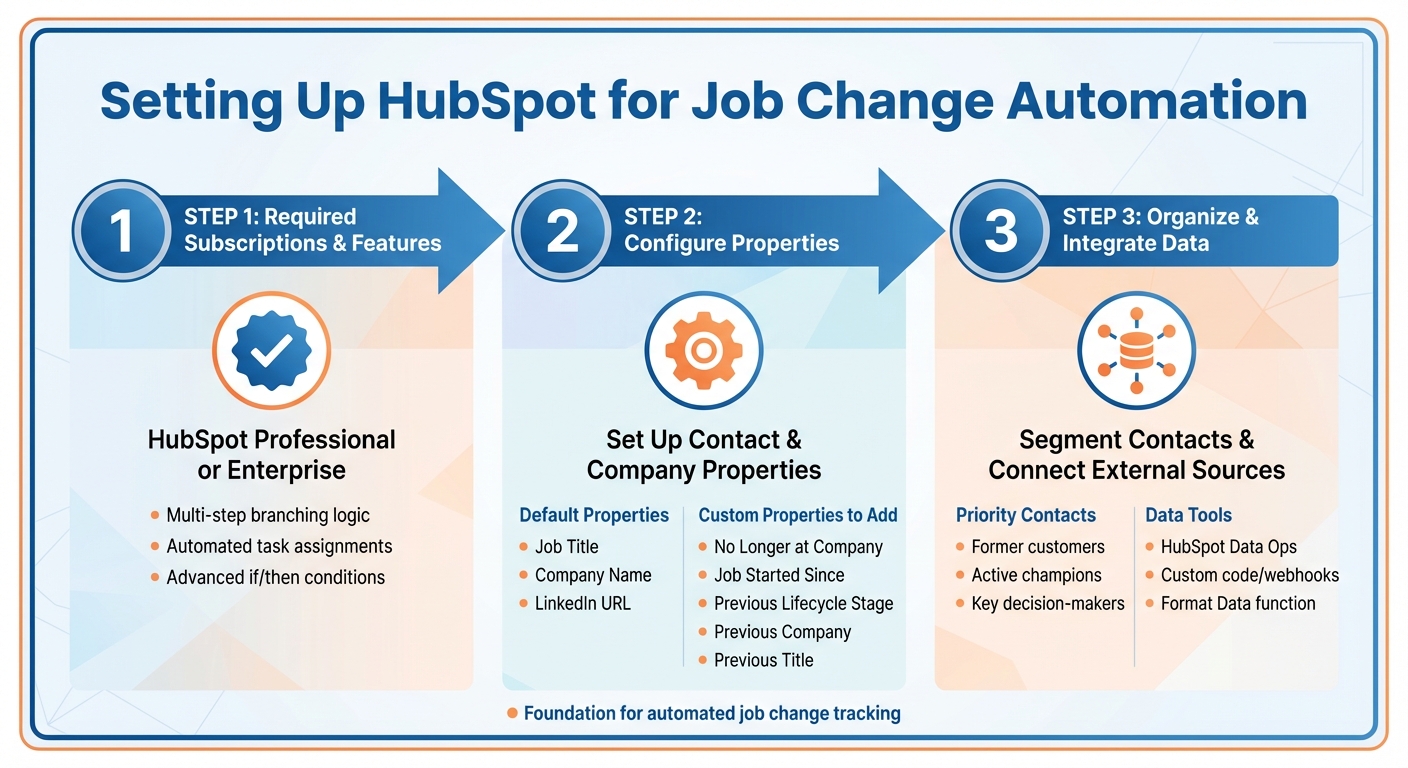
To automate job change tracking in HubSpot, you'll need to upgrade your subscription, fine-tune tracking properties, and segment your contact database. Here's how you can set everything up for seamless job change automation.
To unlock full workflow automation, you'll need either a Professional or Enterprise HubSpot subscription [3][1][4]. These tiers give you access to crucial automation tools like multi-step branching logic, automated task assignments, and advanced if/then conditions. These features are essential for creating workflows that respond to job changes automatically and efficiently.
Once your subscription is ready, the next step is to configure your contact and company properties. HubSpot’s default properties include basics like Job Title, Company Name, and LinkedIn URL [5][6]. However, to track job changes effectively, you'll need to add custom properties. For example, you can create fields such as:
These custom properties allow your workflows to identify role changes while preserving a detailed employment history. This ensures your sales team has the context they need to engage effectively.
To stay ahead, prioritize your key contacts by using segmentation and integrating external data. Focus on high-value prospects like former customers, active champions, or key decision-makers - those most likely to experience job changes [2]. Leverage HubSpot’s Data Ops tools to enhance your tracking. Use custom code or webhooks to bring in verified job change data, and apply the "Format Data" function to turn raw information into actionable insights within HubSpot [1]. This setup ensures your database stays organized and up-to-date, giving you a strategic edge in managing job transitions.
Once you've set up HubSpot, the next logical step is automating how you respond to job changes. HubSpot's intuitive drag-and-drop workflow builder makes this process straightforward for users without technical expertise, while still offering powerful options for more advanced automation needs.
Start by creating a contact-based workflow in HubSpot. To track job changes, use the "Property value changed" enrollment trigger. This trigger activates whenever a property value on a contact record is updated, signaling a change. For instance, you can monitor updates to fields like Job Title or Company Name. This ensures that job changes are immediately detected and processed.
Once a contact enters the workflow, you can use if/then branches to refine how job changes are handled. For example, you might create branches to check if:
From there, you can take actions like updating records, creating tasks, sending internal notifications, or triggering personalized emails. For example, use the Edit records action to update fields like Previous Company or Previous Job Title to maintain a history of the contact's employment. You can also use Create associations to link the contact to their new company record, ensuring everything stays connected. Additionally, update the lifecycle stage to reflect their new role.
For more complex workflows, HubSpot allows you to extend its functionality using custom code actions. With an Operations Hub Professional or Enterprise account, you can write JavaScript (Node.js) or Python (in beta) to handle advanced scenarios. For example:
Custom code is also useful for managing intricate updates when contacts switch organizations, especially by leveraging the v4 Associations API. This can include securely handling API keys, normalizing data, and ensuring robust error handling for smooth operations.
With your workflows ready to go, you can connect real-time job change data from KeepSync directly into HubSpot. KeepSync integrates seamlessly with HubSpot, automatically syncing job change updates into your CRM. The platform scans your contacts weekly across more than 30 data sources, boasting an impressive 94% accuracy rate. It then pushes those updates to HubSpot properties, triggering your workflows. Best of all, the setup takes just five minutes and doesn’t require any custom coding.
To ensure smooth syncing, you’ll need to set up custom contact properties in HubSpot specifically for KeepSync’s job change data. These properties might include:
Each property should be mapped to the correct HubSpot field type (e.g., text fields to text, dates to dates). Set the sync to flow one-way from KeepSync to HubSpot, prioritizing KeepSync data for conflict resolution. This ensures your workflows run on accurate, up-to-date job change information.
Want the flexibility to edit certain fields manually? Instead of direct sync properties, create regular properties and use a workflow with a "Copy property value" action. This approach allows you to make manual adjustments without disrupting automated updates.
Once your data is synced, you can configure timely alerts to act on every job change. For example, when a contact’s Job Change Status updates to "Detected", you can trigger workflows based on that property change. Set up internal email notifications for sales reps, push updates to Slack channels for team-wide visibility, or create timeline events that appear on contact records.
In addition to HubSpot workflows, KeepSync supports direct Slack and email alerts, offering an extra layer of notifications to ensure no opportunity slips through the cracks.
Organize your follow-ups by creating task queues tailored to different job change scenarios. For instance, you could set up queues like "High-Priority Job Changes", "Reconnect with Past Clients", or "Competitor Customer Moves." Use HubSpot’s workflow automation to assign contacts to the appropriate queue.
To prioritize tasks, set the hs_task_priority property to HIGH for critical opportunities. Add clear, descriptive subjects that include the contact’s new role and company, and set due dates based on urgency. Note that automating task creation in workflows requires a Sales Hub or Service Hub Professional or Enterprise subscription.
Finally, train your team to stay on top of their task queues by using the "Queue" filter on the tasks index page. This ensures every job change opportunity gets the attention it deserves.
Once you've set up automated workflows, the next step is to create tailored sales playbooks that make the most of every job change opportunity.
Your sales team needs clear strategies to handle key job change situations effectively.
Former Champions Joining New Companies: Past buyers are 5x more likely to convert into closed-won revenue compared to cold leads [8]. When KeepSync identifies a former champion moving to a new company, assign the contact to their previous owner, flag it as a high-priority task, and initiate a targeted re-engagement campaign.
Churn Prevention: If a key contact leaves an existing customer account, trigger an immediate Slack notification for the account owner and create an urgent task to find a replacement champion. Simultaneously, update the contact's lifecycle stage to avoid sending irrelevant communications while your team works to maintain the relationship.
Expansion Opportunities: When contacts transition to companies that align with your ideal customer profile (ICP), use KeepSync's ICP filters to identify and prioritize these moves. Route these opportunities based on territory or industry. Keep in mind that new executives typically allocate 70% of their budget within their first three months [8], so timing is critical for outreach.
Focus your efforts on opportunities that align with ICP fit, past deal size, and the strength of the relationship. Use if/then logic in your HubSpot workflows to prioritize actions based on these factors. For example, trigger same-day high-priority tasks for contacts tied to deals over $50,000 who move to ICP-aligned companies. For lower-priority moves, assign standard follow-ups.
Automate prioritization by adjusting the hs_task_priority property. For high-value opportunities, assign a senior sales rep, send Slack alerts, update the contact's HubSpot score, and initiate personalized outreach. Keep in mind that 89% of former customers won't return on their own when they take on a new role [8]. Your automation should ensure proactive engagement.
Finally, track these workflows using performance metrics to continuously refine your playbooks.
Use custom HubSpot dashboards and "Job Change Influenced" reports to monitor key metrics like response rates, pipeline impact, time-to-contact, and closed-won deals.
Sales teams with strong enablement strategies achieve a 49% higher win rate [7]. Regularly analyze workflow data to identify which scenarios drive the best results. Refine your enrollment triggers, adjust task priorities, and improve outreach templates as needed. Additionally, KeepSync's integration provides detailed pipeline analytics, offering valuable insights into how job changes influence your sales performance.
Automating job change workflows in HubSpot can completely reshape how B2B sales teams handle opportunities and maintain strong client relationships. By combining HubSpot workflows with KeepSync's job change tracking, which boasts a 94% accuracy rate, you eliminate tedious manual tasks and ensure your team follows up promptly when contacts transition to new roles.
With HubSpot workflows, you can automatically update contact records, assign leads, and send instant notifications - all of which help streamline your sales process [2]. These efficiencies aren't just about saving time; they directly influence your conversion rates.
Consider this: 78% of leads purchase from the first company to reach out [1], and reaching out within five minutes makes you 21 times more likely to close the deal [1]. Automated workflows make it easier to hit these critical timing windows. KeepSync monitors contacts weekly across over 30 data sources and sends real-time alerts via HubSpot, Slack, or email. This ensures your sales team stays on top of every job change event and acts quickly.
To make this work for your team, start by configuring HubSpot properties, setting up enrollment triggers, and building targeted playbooks. Focus on key scenarios like reconnecting with former champions, preventing churn, and identifying expansion opportunities. Use custom dashboards to track performance and refine your strategy as you go.
KeepSync delivers an impressive 94% accuracy in tracking job changes by integrating AI-driven data analysis, real-time CRM updates, and sophisticated pattern recognition algorithms. This combination minimizes errors and false positives, ensuring your contact information stays accurate and current.
With its automated and intelligent data processing, KeepSync keeps you updated on job changes while cutting down on manual work. This means you can dedicate more time to strengthening relationships and seizing new sales opportunities.
Using custom code within HubSpot workflows opens the door to more tailored automation designed to meet your business's unique needs. With this feature, you can handle complex logic, build specialized processes, and connect seamlessly with external systems - pushing past the limits of HubSpot's default tools.
This approach enables you to create highly personalized experiences, simplify operations, and manage specific demands effectively. It adds a dynamic edge to your workflows, making them more adaptable to your goals.
Sales teams can gain a competitive edge by leveraging automated workflows to spot and act on job change signals, like updates to contact records or shifts in job status. These workflows can automatically score and organize leads based on how relevant and valuable they are.
Automation also simplifies the process by triggering urgent tasks, sending tailored notifications, and fine-tuning follow-up sequences to match each lead's level of engagement. This targeted approach helps teams zero in on the best opportunities, boosting efficiency and driving better sales results.