
Digital Marketing
·
April 10, 2026
How SaaS Companies Handle Billing Disputes & Chargebacks
Learn how SaaS billing disputes happen, what triggers chargebacks, and how both sides can resolve them faster.

Automate job-change alerts, enrich closed-lost contacts, and trigger HubSpot workflows to re-engage former buyers and recover lost deals.

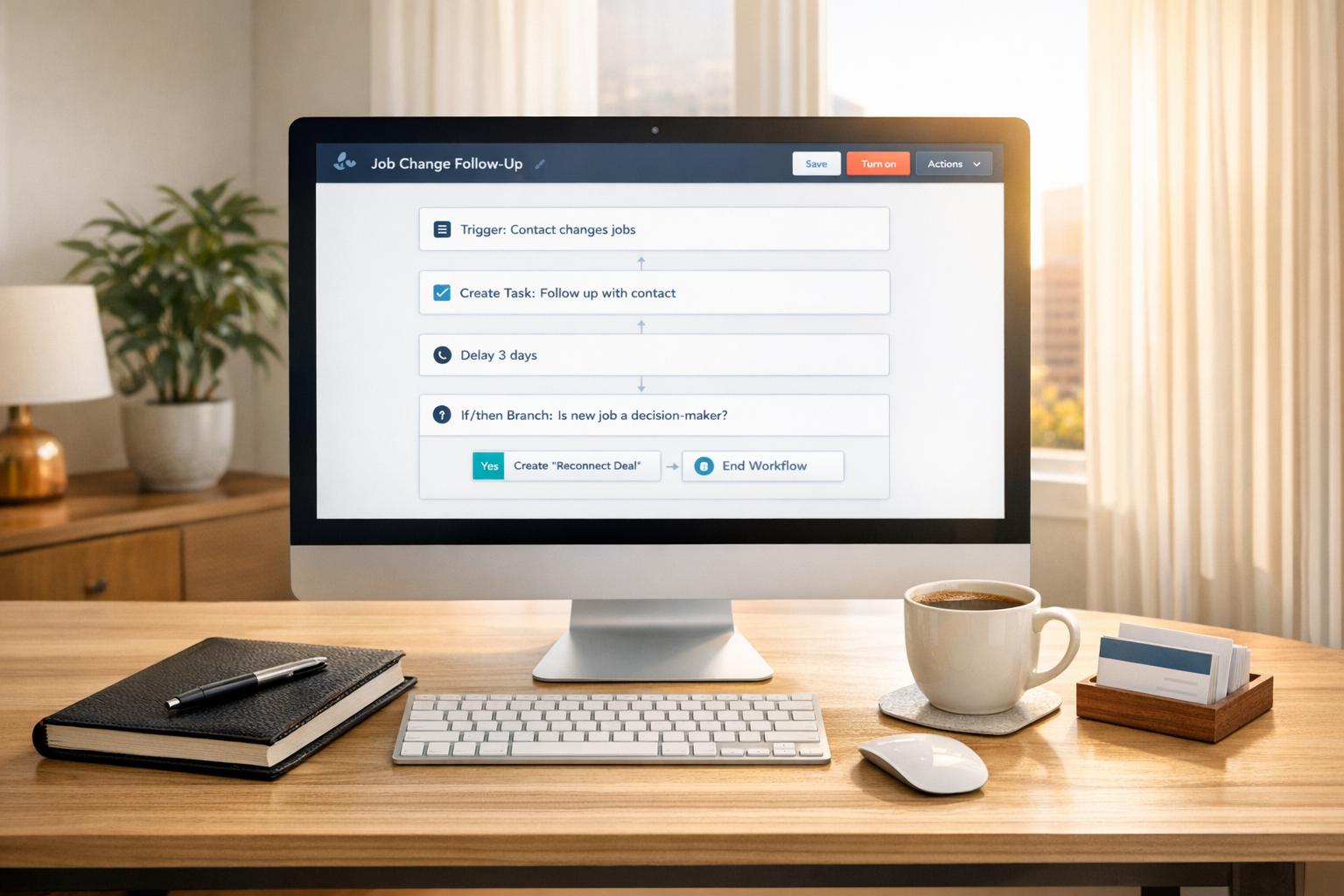
Did you know that 20%-30% of B2B contacts switch jobs every year? This means many "closed-lost" deals aren't truly lost - they're just waiting for the right timing. Former buyers are 5x more likely to convert than cold leads, especially when they step into new roles with decision-making power. But without follow-up, 89% of them won’t reconnect on their own.
By integrating HubSpot with tools like KeepSync, you can automate job change tracking, update CRM records in real time, and trigger workflows to re-engage these contacts. This strategy helps sales teams revive old deals, capitalize on 70% of budgets spent by new executives in their first three months, and increase close rates by 74%.
Here’s how to make it work:
With 30% of the workforce changing jobs annually, every delay means missed opportunities. Start tracking job changes now to turn your closed-lost list into a revenue-generating pipeline.
 Job Change Tracking in HubSpot" style="max-width:100%; margin:1em auto; display:block;">
4-Step Process for Setting Up Job Change Tracking in HubSpot
To get started, make sure your contact records in HubSpot are up to date with critical details like LinkedIn URLs, business emails, and accurate company associations. LinkedIn URLs are a key piece here - they act as the primary identifier for KeepSync, allowing it to track job changes with an impressive 94% accuracy rate [6]. Without these URLs, the system might struggle to match contacts across companies or correctly differentiate between individuals with similar names.
Streamline your monitoring efforts by creating an active list specifically for closed-lost deals. This ensures KeepSync focuses only on the contacts that matter [1]. You can use HubSpot's Breeze enrichment tool to automatically fill in gaps, like missing LinkedIn URLs and job titles, for your existing contacts. To keep this data fresh, go to your contact settings and enable continuous enrichment for fields like Job Title and Employment Seniority [7].
Another important step is to maintain the association between contacts and their original company records. This keeps the "Old Company" information intact when someone changes jobs, which is invaluable for crafting personalized outreach [8]. Lastly, remove any personal email addresses (like Gmail or Yahoo) from your records to avoid tracking errors [7].
Once your data is in shape, you’re ready to integrate and set up KeepSync.
With your contact data prepped, the next step is to install and configure KeepSync for a smooth integration. Start by connecting KeepSync through HubSpot's integration settings. Specify the contact property where LinkedIn URLs are stored - this tells KeepSync where to look for its tracking identifier [6]. Then, map your HubSpot fields (like Job Title, Company Name, and Email) to their corresponding fields in KeepSync. You can decide whether to overwrite existing data when changes are detected ("Replace") or only update empty fields ("Complete only if empty") [6].
Set up automation to handle updates efficiently. Configure KeepSync to update contact details, create new account records, and generate custom objects for pipeline analytics [6]. You can also set automated task notifications to alert the original contact owner whenever a job change is detected [6]. To cut down on unnecessary alerts, apply ICP filters during setup. This ensures you’re only notified about job changes from contacts that match your target personas, avoiding distractions from less relevant industries or roles [6].
For a more advanced approach, consider creating a custom HubSpot object called "Intent" instead of relying solely on tasks. This object can include fields like "Old Company", "Tenure", "New Job Title", and "Start Date", turning job change signals into actionable insights for your pipeline [1].
Once you've enriched your contact data, the next step is to create targeted lists that help you track closed-lost deals for potential re-engagement opportunities.
HubSpot doesn’t allow you to directly filter contacts based on companies associated with closed-lost deals. To work around this, start by creating a company list that filters for companies in the "Closed Lost" deal stage [9]. Then, set up a custom checkbox property, such as "Associated to lost deal", and automate its updates using a workflow [9].
"Creating a contact-based list filtering by associated deals is not supported, necessitating the custom property workaround." - Karsten Köhler, HubSpot Freelancer [9]
Once this is in place, you can build an active contact list. Filter it to include contacts where the associated company has the "Associated to lost deal" property checked [9]. To refine this further, add filters for "Closed Lost Reasons" like "Timing" or "Budget" and focus on contacts previously identified as "Opportunity" or "Customer" [11][12]. This refined list will serve as your starting point for monitoring job changes.
Now that your list is ready, you can set up real-time alerts to stay updated on key job changes. Tools like KeepSync can automatically detect when a contact's job title or company changes and update HubSpot records accordingly [2]. Use this data to trigger an event-based workflow that sends notifications - via email, HubSpot, or Slack - to the appropriate contact owner.
For more advanced tracking, you can leverage KeepSync to create a custom "Intent" object. This object can include fields such as "Intent Type", "Old Company", "New Job Title", and "Start Date" [1]. Automating tasks that provide context about a contact’s previous role can help your team craft personalized outreach strategies [1].
"You can use KeepSync to automatically detect job changes for all contacts at scale, enrich contact and company data, and set ICP filters to only get notified of relevant changes." - NDelyukin, KeepSync [2]
Use KeepSync to set Ideal Customer Profile (ICP) filters that notify your team only about job changes relevant to your target audience [2]. These filters can be customized based on company size, industry, location, job title, and seniority, helping you eliminate irrelevant updates automatically [1][2].
For instance, if your focus is on SaaS companies with more than 100 employees, configure KeepSync to flag job changes only when contacts join organizations that meet these criteria [4][5]. You can also differentiate between "inbound" changes (new hires joining your target accounts) and "outbound" changes (existing contacts moving to new companies), allowing you to streamline outreach efforts [1].
Pay special attention to Champions and Power Users - individuals who had positive experiences with your product in their previous roles. Additionally, prioritize executives and decision-makers during their first 100 days at a new company. This is a critical period, as new executives typically allocate 70% of their budget within this window [1].
Once you’ve identified high-value contacts, leverage pipeline analytics to further rank and prioritize recovery opportunities.
After refining your contact list, pipeline analytics can help you determine which job changes offer the best recovery potential. One effective strategy is creating a custom property in HubSpot, such as "Last Stage Before Lost", to track how far each deal advanced before being marked as closed-lost [11]. Contacts from late-stage deals, like "Contract Sent" or "Decision Maker Bought In", represent stronger recovery opportunities [11].
You can also filter by "Closed Lost Reason" to focus on contacts lost due to "Timing" or "Budget" - situations that often change when someone starts a new role with a fresh budget and updated priorities. In contrast, deprioritize contacts lost due to "Bad Fit" or "Missing Features" [11][3].
To enhance reporting, use KeepSync to create a custom "Intent" object in HubSpot. This object can track fields like "Old Company", "New Job Title", and "Start Date", enabling you to analyze which job changes contribute the most to your pipeline [1].
When KeepSync identifies a job change, you can automatically enroll contacts into HubSpot sequences to re-engage closed-lost deals. This feature works with Sales Hub or Service Hub Enterprise, leveraging workflow-based enrollment [13]. The workflow kicks off when KeepSync creates an "Intent" custom object or task in HubSpot, signaling that a contact has transitioned to a new role.
To get started, design workflows that enroll contacts into tailored sequences. For example, set up one sequence for champions who have moved to new companies and another for closed-lost contacts who are now at target accounts. This ensures your outreach reflects their prior experience with your product. Schedule emails to go out on business days during optimal timeframes for better engagement.
Your sequences can include a variety of touchpoints, such as:
Contacts are automatically removed from sequences when they reply to an email or book a meeting, eliminating redundant follow-ups. For manual tasks, like sending LinkedIn connection requests, add these to a task queue so your team can handle them efficiently without leaving HubSpot.
Once contacts are organized into these customized sequences, you can enhance your outreach by leveraging enriched contact data.
KeepSync ensures contact emails and company data are up-to-date, reducing the risk of bounces and enabling precise template personalization [1]. You can use tokens like {intent.old_company} and {intent.new_company} in your email templates, with fallback options (e.g., "there" for missing names) to maintain smooth communication.
However, personalization is about more than just inserting tokens. Instead of saying, "I saw you moved to Company X", use the enriched data to craft relevant, value-driven messages, such as, "Here’s how we support companies in [New Industry]."
"My best advice is to use personalization tokens not as something to directly add to your email body but actually as a guide for your approach." – José Pedro Forte, RevOps Manager at Infraspeak [14]
Before sending, use HubSpot’s "Preview as contact" feature to double-check that tokens display correctly for each recipient. This extra step ensures your messages resonate and maximizes the effectiveness of your recovery efforts.
Once you've automated your outreach, it's time to measure how well your recovery efforts are paying off. HubSpot makes this easier with closed-loop reporting, which ties re-engagement activities directly to revenue. To get started, create a custom report in HubSpot with Deals as your data source. Set filters for "Deal stage is Closed Won" and add another filter for deals previously marked as "Closed Lost" [15].
To make insights more actionable, standardize the "Closed Lost Reason" field by turning it into a dropdown menu with choices like "Bad Timing", "Cost", "Bad Fit", and "Competitor" [3]. This way, you can quickly identify patterns and see which types of lost deals are most likely to respond to job change tracking.
"The idea is that the data you collect as a marketer is incomplete if it doesn't include what happens to leads after you hand them off to sales... that requires tracking a lead's behavior from first marketing touch to final sales action." - Kyle Jepson, HubSpot [3]
Visualize your progress by building a "Deals by Closed Lost Reason" vertical bar chart. This chart highlights which previous deal blockers are being overcome through your recovery efforts [11]. You can also add a "Last Stage Before Lost" property using workflows to pinpoint where deals originally stalled. This helps you evaluate whether recovered deals are moving faster through the pipeline compared to their initial journey [11]. For a deeper dive, create a "Deal Revenue by Source" report to see how much revenue is being generated specifically from job change-triggered recoveries [16]. These insights can then be fed back into your HubSpot workflows, continuously refining your strategy for re-engaging lost deals.
Once you've set up your dashboards, complement these insights by tracking recovery metrics with KeepSync.
To get a complete picture of your recovery performance, use KeepSync's pipeline analytics. Start by monitoring key metrics like email reply rates to gauge how well your personalized outreach resonates with contacts in new roles. Keep an eye on lead response time, tracking how quickly leads engage after receiving a KeepSync alert.
Another valuable metric is deal velocity - compare how quickly recovered deals move through the pipeline versus standard new opportunities. HubSpot’s AI-powered Deal Scores (ranging from 0 to 100) also come into play here. These scores adjust automatically when a recovered deal's probability changes by +/- 3%, helping you prioritize the most promising opportunities [10]. Scores typically update within 36 to 48 hours and are based on buyer engagement and activity history [10].
Finally, review your quota attainment report to measure how recovered deals contribute to your overall sales goals [16]. Use HubSpot's "Team Activity" report to track metrics like average touches per lead and meeting completion rates for contacts flagged by KeepSync. This data reveals whether your team is acting quickly on job change alerts and whether your outreach strategy is sparking meaningful conversations that push deals forward.
Tracking job changes transforms closed-lost deals into new revenue opportunities. The approach is simple: categorize your lost deals with clear, standardized reasons, automate job change monitoring with KeepSync, prioritize contacts that align with your ideal customer profile (ICP), and create personalized outreach that acknowledges both your past relationship and the contact's new role.
The numbers speak for themselves. Previous buyers are five times more likely to convert compared to cold leads, and new executives typically allocate 70% of their budgets within the first three months of their role. However, 89% of former customers won’t reconnect with your business on their own after switching companies [1]. Automation ensures you don’t miss out on these hidden opportunities.
Taking action is straightforward. Start by automating active lists for closed-lost contacts in HubSpot and let KeepSync track job changes in real time. When a high-value contact moves to a company that matches your ICP, you’ll get real-time alerts via Slack, email, or directly in HubSpot. From there, enroll these contacts in personalized sequences that reference their prior experience with your product and address the challenges of their new role.
The results are tangible. Teams leveraging job change signals report a 10% to 50% increase in pipeline generation [1]. Custom dashboards will help you track which closed-lost reasons are being overturned, how quickly these deals progress through the pipeline, and the exact revenue generated from signal-based outreach.
Your closed-lost list is an untapped prospecting treasure. With 30% of the corporate workforce changing jobs annually [4], every week you delay means missed opportunities. Set up your workflows now, and start reconnecting with warm leads who already recognize your value. By integrating this strategy into your existing processes, you can unlock the full potential of re-engagement opportunities.
HubSpot's job change tracking feature lets you know when your past contacts land new roles, opening the door to reconnect and build fresh opportunities. By automatically alerting your team about these changes, you can focus on reaching out to these warm leads with tailored follow-ups that align with their new position.
This strategy often helps revive previously lost deals, strengthen your sales pipeline, and convert missed chances into actual revenue. It's a smart way to stay connected and nurture meaningful relationships over time.
If you're looking to configure KeepSync for tracking job changes, specific instructions aren't readily available at the moment. However, you can check KeepSync's documentation or setup guides if you have access to them - they're likely to contain detailed steps.
For personalized help, it's a good idea to contact KeepSync's support team. They'll provide you with accurate, up-to-date guidance designed to meet your specific requirements.
To zero in on high-value contacts in HubSpot, start by crafting your Ideal Customer Profile (ICP). Pinpoint key attributes like company size, industry, annual revenue, and buyer role. Add these as custom properties for contacts or companies in HubSpot, ensuring that the data stays consistent across all records. Once set up, use HubSpot’s list builder to create dynamic segments tailored to your ICP - for instance, "Enterprise + SaaS + Revenue > $5,000,000."
After defining these segments, take it a step further by factoring in lead status and lifecycle stage. Narrow your focus to contacts tagged as "Qualified – Marketing" or "Opportunity" within your ICP. This helps you identify leads who not only match your ideal profile but are also actively engaged in the sales process.
Lastly, streamline the process with workflows. Assign a numeric score or tag to contacts that meet all ICP criteria, notify the appropriate sales rep, and add those leads to a "Priority Outreach" queue. This way, your team can concentrate on the most promising opportunities while HubSpot keeps your lists updated automatically.