
Digital Marketing
·
April 10, 2026
How SaaS Companies Handle Billing Disputes & Chargebacks
Learn how SaaS billing disputes happen, what triggers chargebacks, and how both sides can resolve them faster.

Track contact job and company changes in HubSpot, automate alerts and workflows, and convert departures into retention or revenue opportunities.


Job changes can disrupt customer relationships, but they also create new opportunities. With 30% of the workforce switching jobs annually, tracking these changes in HubSpot ensures you’re prepared to retain customers and uncover new revenue streams. Here’s how:
To effectively track job changes in HubSpot, you need to establish a solid data setup and ensure proper access permissions. Without these foundational steps, your tracking system may not work as intended. Here's what you need to prepare to get started.
The LinkedIn Profile URL serves as a reliable identifier for each contact, staying consistent even if they change employers or email addresses. Alongside this, include key employment fields such as Job Title and Company Name, and create custom properties like Previous Job Title and Previous Company to track any changes.
Set up the Company Domain Name field for automatic account matching. Add contextual properties like Associated Deals, Relationship Type (e.g., primary contact or influencer), and Product Usage to provide deeper insights. To gauge the potential of opportunities, include qualification metrics such as Employee Count and Industry. Additionally, fields like Record Source and Record Source Detail can help segment records created through job-tracking integrations, enabling targeted workflows.
HubSpot's native enrichment feature automatically updates fields like Job Title, Employment Seniority, and LinkedIn URL using its internal dataset [6]. To activate this, turn on the "Continuously enrich existing records" option in your settings. This ensures that previously enriched records are updated monthly as new data becomes available [6]. Configure the enrichment mapping to "Fill empty values and overwrite existing values" so outdated information, like old Job Titles, is replaced [6].
Third-party integrations can also track LinkedIn profile updates and sync this information back to HubSpot. These tools require the LinkedIn Profile URL to be populated for key contacts. Keep in mind that HubSpot's native enrichment won't process personal email addresses (e.g., Gmail or Yahoo). You'll need business emails and valid company domain names for these features to work [6]. Use filters to ensure job change alerts are only triggered for contacts that align with your Ideal Customer Profile.
Make sure your team has the appropriate permissions. Users need View and Edit access for Contacts and Companies to monitor title changes and update company associations [7][9]. Enable the "Enrich records" permission so they can use HubSpot's native data enrichment features [7]. For automated workflows, Workflow access is required, and monitoring segments will need Segments tool permissions [7].
Super Admins or users with "Add and edit users" permissions are responsible for configuring these settings. Note that permission updates may take up to five minutes to apply [7][8]. If you’re working with a larger team on an Enterprise plan, consider creating a dedicated "Job Change Tracking" permission set. This ensures consistent access across the department without the need for manual adjustments for each user. Follow the principle of least privilege - for example, a Customer Success Manager might need edit access for contacts but shouldn’t have permissions to delete records or change account-wide settings [9].
"Control and manage user access in one central location to safeguard customer data and keep teams organized." – HubSpot [9]
With these steps completed, you’ll have the foundation needed to set up job change tracking in HubSpot’s workflow tools efficiently.
Once you've got a solid data foundation, it's time to set up HubSpot to track and respond to job changes. This involves three main steps: creating focused contact segments, setting up automated systems to detect changes, and building workflows to act on those changes. These steps ensure your system stays on top of job updates and responds effectively.
Start by navigating to CRM > Segments in HubSpot to create targeted lists of contacts. You can organize these lists by customer tier (e.g., Enterprise or SMB), role (like Decision Makers or Champions), or industry to zero in on the most relevant individuals. Use the Lifecycle Stage property to filter for "Customer" or "Evangelist" contacts, as these relationships are typically the most valuable to track [14].
For Professional and Enterprise accounts, take advantage of association labels to refine your segments further. When building a segment, click "+Add filter", select "Company" under associated objects, and use the "[Object] is associated to" dropdown to choose labels such as "Primary Contact" or "Decision Maker" [12]. This ensures you're not monitoring every contact in an account but focusing on those who truly matter.
If you're on an Enterprise plan, you can also enable segment notifications. Select your segment, head to the "Settings" tab, and toggle on alerts for irregular size changes. HubSpot's AI will notify you if it detects unusual shifts, like a spike in job changes. You can route these alerts to specific users or teams via email or Slack [10].
These tailored segments are the foundation for timely alerts and efficient workflows.
Once your segments are ready, you can configure automated systems to catch job changes as they happen. While HubSpot doesn’t track LinkedIn profile updates directly, you can integrate enrichment tools to monitor changes to properties like "Company" or "Job Title" and sync these updates to your contact records [1][2].
To keep things focused, set your enrichment tool to filter job changes against your Ideal Customer Profile (ICP). For instance, you might only want alerts if the contact’s new company has over 100 employees [2]. This helps your team prioritize meaningful opportunities and avoid wasting time on less relevant leads.
Next, set up real-time notifications. Configure your enrichment tool or HubSpot workflows to notify the contact owner via Slack or email whenever a job change is detected [2][15]. For high-priority contacts, you can even route these alerts to a dedicated Slack channel for a quick review before initiating outreach [2].
"Rather than starting with cold prospecting, this approach begins with your existing customers, the people who already know and trust your product." – Taimoor Tariq, Lead, Clay Club Berlin [2]
With real-time alerts in place, the next step is to create workflows that act on these job change signals. In HubSpot, build a contact-based workflow with enrollment triggers set to property changes like "Job Title is known" or "Company Name has changed." This ensures contacts are automatically enrolled when job changes occur [1][11].
Within the workflow, add actions like creating a task for the contact owner. Include details about the contact’s history with their previous company [1][13]. Use association labels to mark the contact as a "Former Employee" at their old company and as a "Decision Maker" at their new one. This preserves the context of the relationship while updating their current status [12].
For qualified opportunities, you can enroll contacts into email sequences or draft messages for team approval [2]. Add a branch in the workflow to check if the new company meets your ICP criteria (e.g., employee count or industry) before initiating outreach [2]. This ensures your team focuses on opportunities that align with your goals.
"Creating tasks is the best way to be notified when one of your contacts has changed job title or company to trigger actions such as cold calling, email campaigns, etc." – LoneScale [1]
When creating new contact records for individuals at their new companies, make sure your workflow enrollment criteria don’t include newly created records. This avoids the risk of infinite loops [13]. Keep in mind that HubSpot stores workflow action logs for 90 days and enrollment history for six months [11].
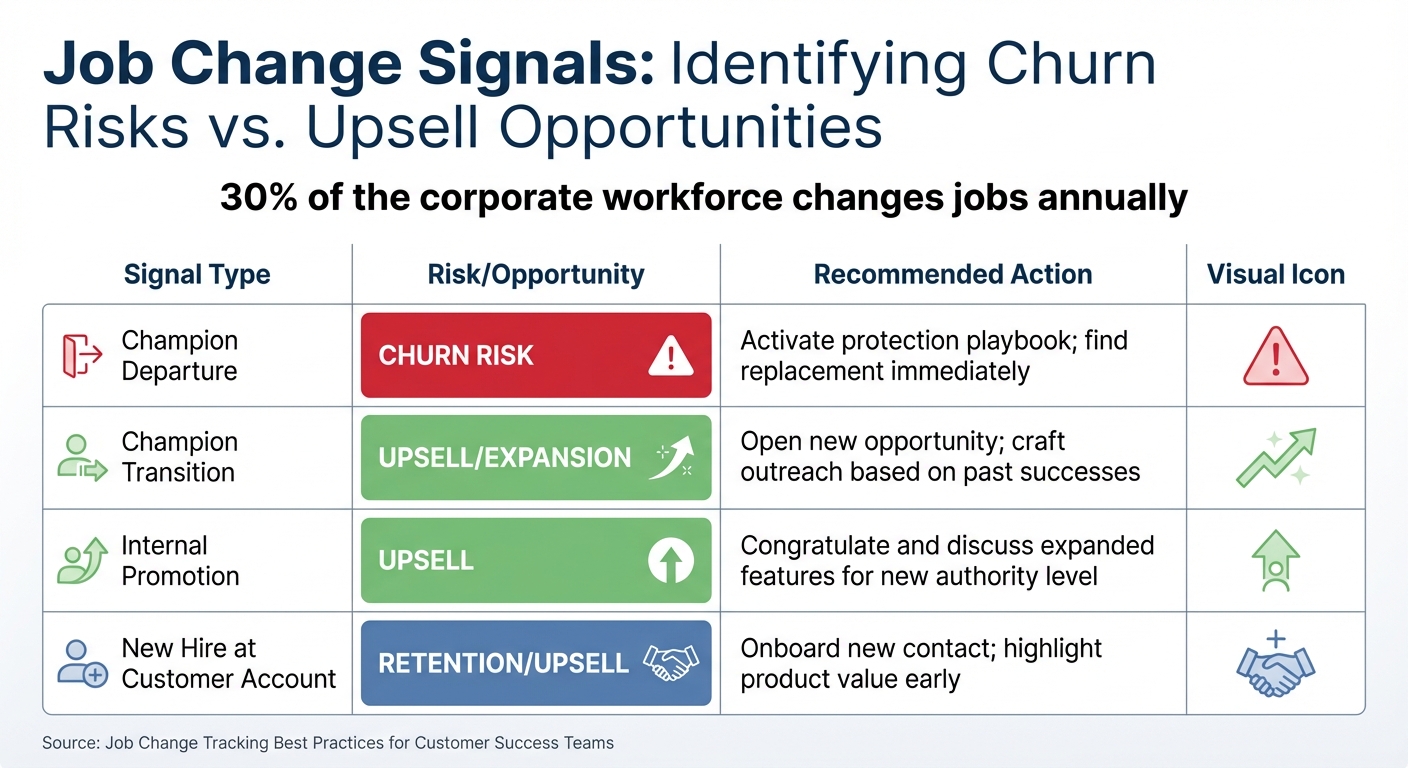
Job Change Signals: Churn Risks vs Upsell Opportunities Matrix
Setting up job change tracking is just the beginning. The real advantage lies in how you use these insights to build stronger customer relationships and uncover revenue opportunities. With around 30% of the corporate workforce changing jobs each year[4], having a clear game plan can help you turn these transitions into wins rather than missed chances.
Speed matters, but context is everything. When you spot a job change, resist the urge to send a generic message right away. Instead, start by reviewing the contact's history in HubSpot. Look at their previous interactions with your products, how long they’ve been a customer, and their role in decision-making[2].
The best outreach feels personal. Reference specific connections, mention mutual colleagues, or highlight past projects. This transforms what could feel like cold outreach into a warm, relevant conversation[2]. Use AI tools to gather recent news about their new company and understand their new role. However, don’t rely entirely on automation - have a customer success manager review AI-generated drafts via Slack to ensure the tone aligns with your relationship[2].
"The logic is simple: when a customer moves to a new company, they bring their positive experience with your product along with them. They're your best advocates." – Taimoor Tariq, Lead, Clay Club Berlin[2]
Pair your outreach efforts across different platforms. For example, a personalized email through HubSpot could be followed by a LinkedIn connection request. Before investing time in crafting messages, filter new companies based on your ICP (ideal customer profile) criteria, such as industry or company size[2].
From there, analyze the signals to determine whether you’re dealing with a churn risk or an upsell opportunity.
Job changes can lead to very different outcomes. The key is to assess the situation and adapt your strategy accordingly. Where your contact is headed will dictate whether you need to protect an account or pursue growth opportunities[3].
| Signal Type | Risk/Opportunity | Recommended Action |
|---|---|---|
| Champion Departure | Churn Risk | Activate a protection playbook; find a replacement immediately[3] |
| Champion Transition | Upsell/Expansion | Open a new opportunity; craft outreach based on their past successes[3][2] |
| Internal Promotion | Upsell | Congratulate them and discuss expanded features suited to their new authority[4] |
| New Hire at Customer Account | Retention/Upsell | Onboard the new contact and highlight your product's value early on[4] |
When a champion leaves your customer’s account, the risk of churn increases immediately. This is where your "Renewal/Account Protection" playbook kicks in. Notify the customer success manager, identify the new person stepping into the role, and start building a relationship with them right away[3]. AI can help analyze past deals to determine how critical the departing contact was - if they were a power user or a key decision-maker, the account needs immediate attention[2][4].
On the other hand, when that same champion joins a new company that fits your ICP, it’s a prime opportunity for expansion. This triggers your "Champion Tracking" playbook. Create a new opportunity record, enrich the data for their new company, and craft a personalized message that references their positive experience with your product at their previous job[3][2].
"Job change signals aren't just a 'nice to have.' For RevOps, they're a critical layer of intelligence that drives both retention and growth." – Nirit Braun, Senior Content Strategist, Lusha[3]
Once you’ve identified the type of opportunity, the focus shifts to nurturing relationships with both the departing and incoming contacts. The alerts and workflows you’ve set up earlier enable you to act quickly, whether it’s to safeguard an account or seize a new opportunity.
When a key contact transitions, you’ll need to juggle two priorities: retaining the existing account and leveraging the departing contact’s new position[3].
For the departing champion, take time to understand their new role and challenges before reaching out. Reference specific projects or achievements from your past work together. These individuals already know your product’s value, making them excellent warm leads[2]. A LinkedIn connection request combined with a tailored email can work well, but ensure your workflows prevent duplicate messages across platforms[2].
For the existing account, timing is everything. As soon as a champion leaves, trigger a workflow to identify and engage their replacement. Update your CRM with the new contact’s details and focus on building rapport quickly. Highlight your product’s value and reference the departing champion’s contributions to establish trust and continuity[4].
"If your main contact leaves, renewal risk spikes. Acting early means the account doesn't slip away." – Lusha[3]
Once your workflow is active, the next step is clear: evaluate its performance. Without proper measurement, you risk inefficiencies and missed revenue opportunities.
HubSpot’s Customer Success Workspace offers a centralized way to monitor how job changes impact your business. The Revenue tab lets you track deals or subscriptions tied to champions who’ve moved to new organizations. This helps you measure the financial impact of your tracking efforts[17]. You can also create custom views in the Customers tab to filter records assigned in the last 30 days or those that meet specific job change criteria[17].
To measure engagement after job change alerts, set up Workflow Goals in your contact-based workflows. For example, a goal could be met when a contact books a meeting or transitions to a new lifecycle stage. Note that this requires a Marketing Hub Professional or Enterprise subscription and workflows must include a "Send email" action[18].
Pay attention to intent signals like "Job started" or "Job ended" events, which appear on activity timelines. These signals can trigger automated responses or contribute to lead scoring, with historical data automatically populated[16]. Also, keep a close eye on account health scores. When a key contact leaves, the status often shifts to "At-risk", signaling the need for immediate action[17].
These metrics provide the foundation for analyzing conversion rates and assessing the effectiveness of your efforts.
To determine if job change alerts are driving revenue, track champion-to-pipeline conversion - how many job change signals turn into new sales opportunities or deals[2]. Compare the lifecycle stage velocity of leads generated from job change alerts to that of cold leads. Using calculated properties like "Time in [Stage]", you can see if warm leads from champions move through your pipeline faster[5].
Evaluate efficiency by tracking task completion and response times. For instance, how quickly does your team respond to a job change alert with personalized outreach? Faster responses often result in better outcomes[1][17]. Use the "Date Entered [Stage]" property to generate reports showing how many new opportunities stem from job changes each month[5].
Retention is another key metric to monitor. Research indicates that 47% of businesses report CRM software significantly improves customer retention[19]. Identifying a champion’s departure early allows you to address potential gaps in the relationship, helping to safeguard existing revenue[19].
| KPI Category | Specific HubSpot Metric | Purpose |
|---|---|---|
| Revenue | Deal Amount from "Champion" Source | Tracks ROI from champions at new firms |
| Retention | Account Health Score (Average) | Monitors risk when key contacts leave |
| Efficiency | Task Completion Rate (Job Change Alerts) | Measures team responsiveness to alerts |
| Conversion | Workflow Goal Conversion Rate | Assesses effectiveness of automated outreach |
| Velocity | Cumulative Time in [Stage] | Compares warm champion leads to cold leads |
Accurate data is the backbone of effective customer engagement and revenue growth. If your job change alerts are targeting the wrong people or missing key contacts, your strategy won’t deliver results. To improve accuracy, adopt a waterfall enrichment approach with sequential data models to increase your hit rate and ensure you're tracking the right individuals[2]. Using LinkedIn profile URLs as a primary data property can also lead to more precise matching and tracking[1][2].
Stick to the ICP and persona filtering rules you’ve already established to exclude irrelevant job changes. For instance, you can set criteria like a minimum employee count of 100 to focus on high-value job changes[2]. Instead of relying solely on job titles, leverage AI agents to analyze full LinkedIn profiles and classify contacts into relevant personas[2].
Consider adding a human-in-the-loop verification step before finalizing data in your CRM or initiating outreach. For example, send alerts to Slack for manual review to catch errors before they escalate[2]. Use HubSpot’s custom field mapping options, such as "Replace" or "Complete only if empty", to maintain clean data[1]. You can also configure mandatory properties in your pipelines, requiring users to update or verify contact data when a record advances to a new stage[20].
Keep in mind that health score alerts in the Customer Success Workspace expire after 14 days, so act promptly when they appear[17]. Regularly reviewing your tracking setup ensures that signals are captured correctly and workflows are running smoothly. The more you refine your process, the more reliable your data becomes - leading to better results overall.
Tracking job changes is transforming the way companies approach customer success, offering both a safeguard for revenue and a gateway to new opportunities. With nearly 30% of the workforce changing jobs annually, keeping your CRM updated isn’t just a nice-to-have - it’s a necessity for protecting revenue streams and staying ahead of the curve[4]. This proactive strategy delivers measurable results that can’t be ignored.
Job change tracking drives results in three critical areas:
The numbers back this up. Studies show that improving customer retention by just 5% can lead to a profit increase of 25% to 95%[21]. Yet, many teams overlook job changes, missing 85% to 90% of these shifts, leaving untapped revenue potential on the table[22]. Automating job change tracking keeps your HubSpot data accurate, enables personalized outreach, and saves your team from the drudgery of manual updates.
To unlock these benefits, precise execution is key. Begin by focusing on your most vital contacts - champions, power users, and decision-makers within your top accounts. Update your HubSpot contact properties to include LinkedIn URLs, and create segments or lists to track these individuals. Then, set up automated workflows to alert the appropriate Customer Success Manager whenever a tracked contact changes roles, whether they’re leaving a client account or joining a new company.
It’s best to start small. Focus first on your current customers rather than trying to monitor every contact. As Taimoor Tariq wisely advises:
"Start with customers, not prospects: Your existing customers are your best source of warm leads"[2]
Test your workflows, analyze conversion rates, and refine your process based on what works. With the right system in place, job changes can evolve from potential challenges into consistent opportunities for growth and retention.
Job change tracking keeps customer success teams in the loop when important contacts at client companies switch roles or move to different organizations. With timely updates, teams can take proactive steps to stay connected, update their contact databases, and build relationships with new decision-makers.
This strategy helps minimize churn, ensures seamless transitions, and can even create opportunities for upselling or cross-selling, boosting both customer retention and satisfaction.
To keep tabs on job changes in HubSpot, pay attention to key fields that signal updates in a contact’s professional details. At the very least, keep an eye on Job Title, Company Name, and Email, as changes in these areas often point to a shift in role or employer.
If you want a more detailed picture, think about adding custom fields like Previous Company (to record where they worked before) and Job Started Since (to note when they began their new position). These additions can provide a clearer timeline, trigger automated notifications, and help you tailor your follow-ups, making it easier to maintain strong connections after a career move.
To set up automated job change alerts in HubSpot, here’s what you need to do:
This process ensures your team is always in the loop when a contact’s job changes, creating opportunities for timely outreach and engagement.