
Digital Marketing
·
April 10, 2026
How SaaS Companies Handle Billing Disputes & Chargebacks
Learn how SaaS billing disputes happen, what triggers chargebacks, and how both sides can resolve them faster.

Set up job-change tracking in HubSpot, integrate enrichment tools, automate alerts and workflows, and measure pipeline impact for B2B SaaS.

Job change tracking in HubSpot can boost your sales pipeline by up to 50% and reduce churn risks. By automating updates for contacts who switch jobs, you gain real-time insights into opportunities and risks. Here's how it works:
This guide explains how to set up job change tracking in HubSpot, create workflows for real-time alerts, and measure the impact on your pipeline.
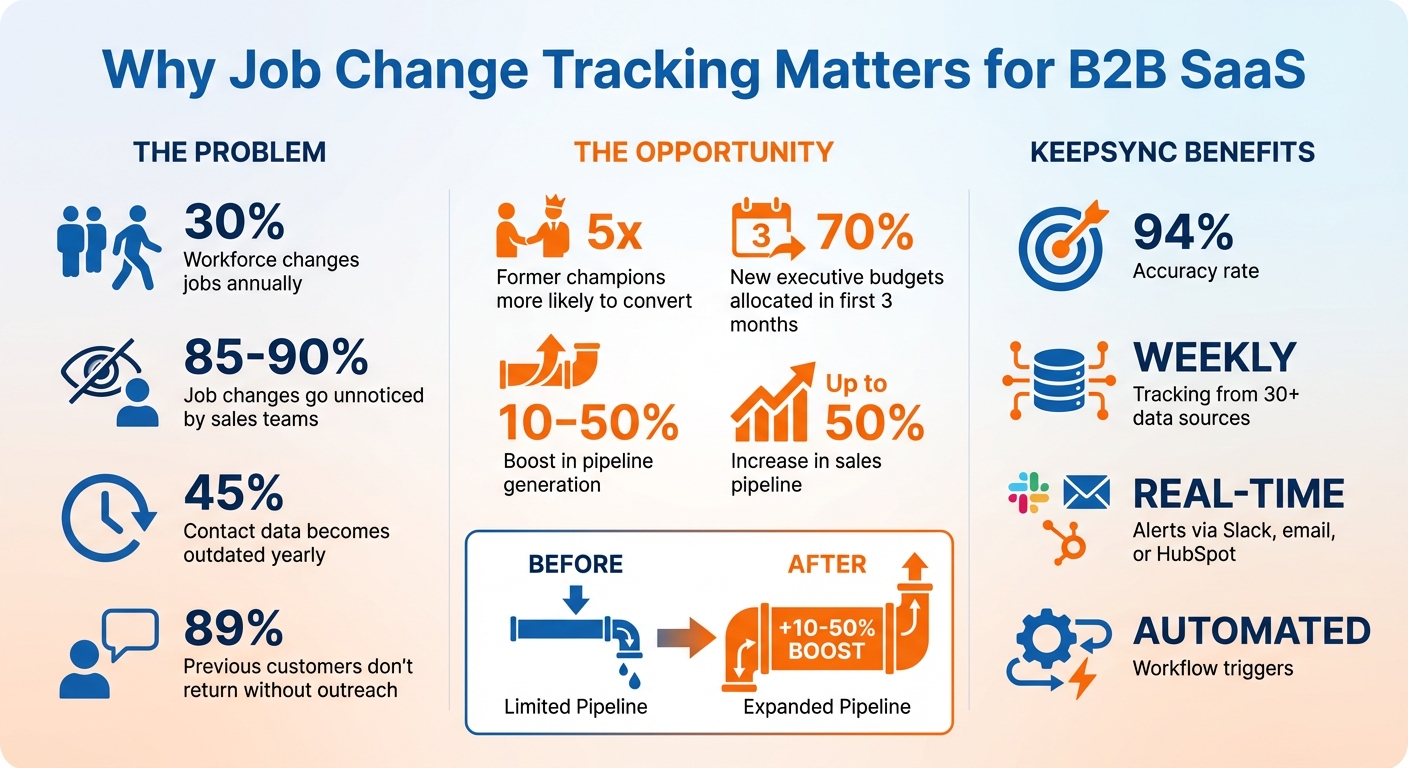
Job Change Tracking Statistics and ROI Impact for B2B SaaS
Getting your setup right ensures you can turn job changes into actionable insights. To make the most of this feature, you'll need to configure HubSpot properties, link your tracking tool, and choose the contacts you want to monitor. Here's how to connect KeepSync to HubSpot for real-time tracking.
Before diving in, make sure your HubSpot account is ready to go. You'll need Super Admin or Data Enrichment permissions to proceed.
One key requirement is having LinkedIn URLs for your contacts. This serves as the primary identifier for tracking career changes and helps minimize false matches.
Set up custom properties like "No longer at Company" and "Intent Type" to organize your data and streamline workflows. These properties will play a crucial role in automation and segmentation later.
Prepare by creating targeted lists for the segments you want to track. Make sure your contacts use business email addresses - personal domains like Gmail won't work for enrichment. Also, ensure company records include domain names.
If you're planning to use advanced reporting, note that a HubSpot Enterprise subscription is required for features like custom objects or property change events. However, basic task-based tracking works across all HubSpot tiers.
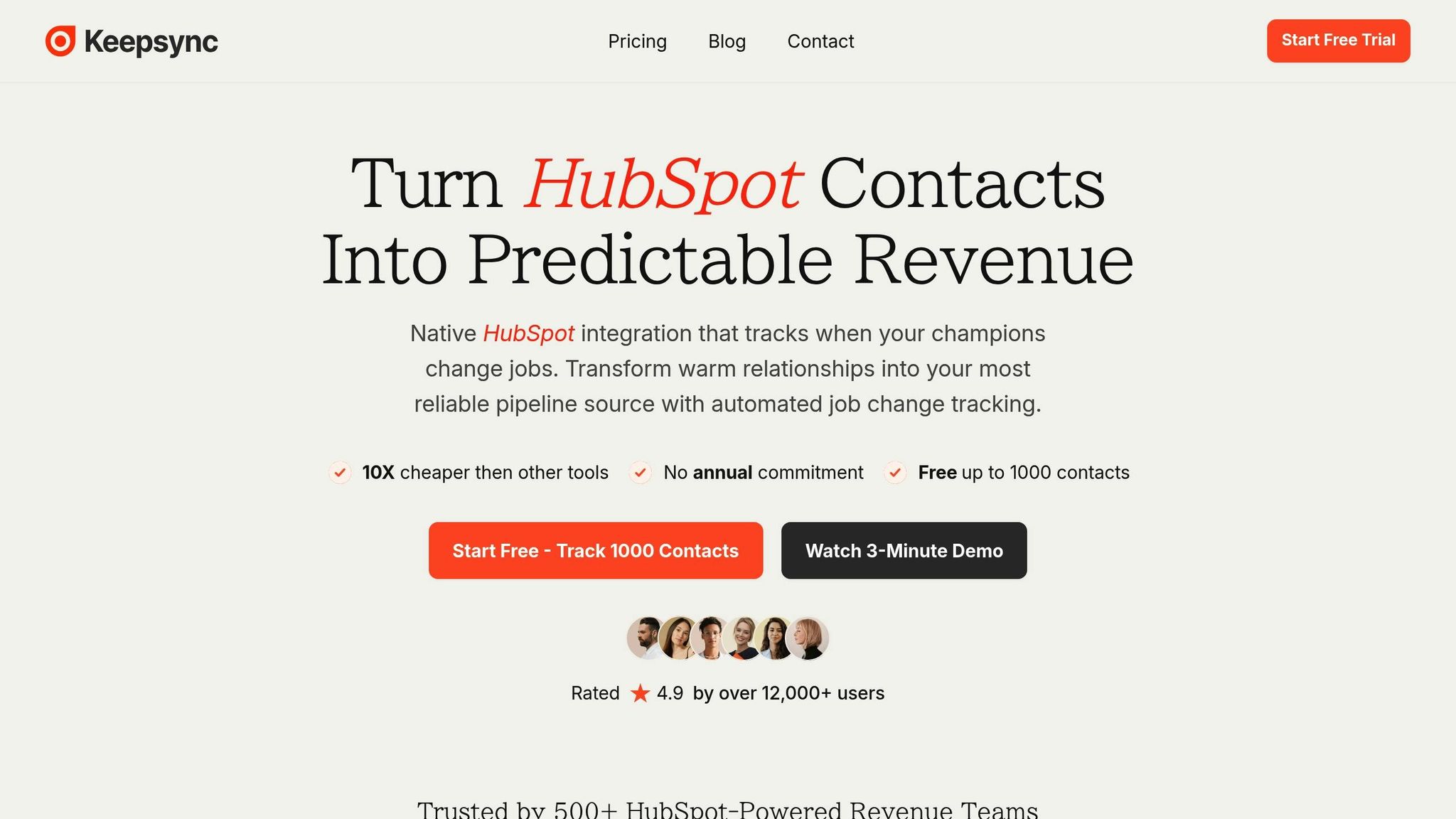
Once your properties are set up, it's time to link your tracking tool.
Once you've integrated KeepSync with HubSpot, you can set up automated alerts to make the most of job change signals. HubSpot workflows allow you to act on these signals immediately - whether it’s notifying your sales team, assigning leads to the right representative, or initiating personalized outreach. Speed is critical here, as new executives often allocate 70% of their budget within the first three months of starting a new role [1].
Set up instant notifications for contacts who have recently changed jobs to tap into new opportunities as they arise.
Slack notifications work well for high-value contacts. You can create a dedicated Slack channel, like #job-changes, to keep your sales team in the loop. Whenever KeepSync updates a contact’s job information, your workflow can send a message with details such as the contact's name, their new company, and any prior relationship history.
For more detailed updates, you can pair Slack alerts with internal email notifications. These emails might include the contact’s LinkedIn profile, their new role, and any relevant deal history. Alternatively, you can assign tasks directly to the contact owner, complete with a one-day deadline, ensuring timely follow-up.
Here’s a quick look at different alert types, their corresponding HubSpot actions, and when to use them:
| Alert Type | HubSpot Action | Best Use Case |
|---|---|---|
| Slack Notification | Send Slack notification | Immediate updates for the sales team in a shared channel |
| Internal Email | Send internal email notification | Detailed updates for Account Executives or Customer Success Managers |
| CRM Task | Create task | Ensures follow-up with a personalized touch or LinkedIn connection request |
| Sequence Enrollment | Enroll in sequence | Automated outreach for lower-priority leads or high-volume job change signals |
Streamline lead assignment and outreach by combining automated workflows with smart routing. Start by setting your enrollment trigger to "Property value changed" for fields like Job Title or Company Name. If you’re using Custom Objects to track intent signals, use the "Object creation" trigger instead.
Incorporate branching logic to manage different scenarios. For example, if a former champion joins a new company that fits your Ideal Customer Profile (ICP), route them to a senior Account Executive and enroll them in a "congratulatory" sequence. The first email could reference their previous company and propose reconnecting in 30–60 days as they settle into their new role [1]. If a key contact leaves a current customer account, notify your Customer Success team immediately to mitigate potential churn.
To ensure leads are assigned efficiently, use the "Rotate record to owner" action to distribute leads based on territory or team capacity. You can also trigger data enrichment to update contact details before outreach, giving your team accurate information to work with.
For leads that don’t require a high-touch approach, enroll them in automated sequences. Even these lower-touch workflows can deliver excellent ROI, ensuring you stay engaged with warm leads during their career transitions. By automating these processes, you can turn job changes into revenue opportunities while seamlessly integrating the results into your analytics and reporting systems.
Setting up custom views in HubSpot can help you stay ahead when tracking job changes. These views allow you to organize your CRM in a way that highlights contacts experiencing transitions, ensuring you can follow up promptly without searching manually. For example, you could create one view for former champions who’ve left their companies and another for recent hires at target accounts.
Here’s how to create a custom view: Navigate to CRM > Contacts, click + Add view, and select Create new view. Use advanced filters to focus on job changes. For instance, you might filter for contacts where "Job started since" is less than 30 days ago and "Contact owner is Me" to see only your recent job changes. Once your filters are set, click the Save icon and choose visibility settings - Private for personal use, My team for departmental access, or Everyone for company-wide sharing.
To make things even easier, pin your key view as the default. This way, job change data is the first thing you see when logging into HubSpot, helping you act fast on warm leads.
If you want to re-engage contacts who’ve left their previous roles, create a view that filters for No longer at Company = True. This property, automatically updated by KeepSync, flags individuals who have moved on, giving you a chance to reconnect and introduce your solutions at their new organization.
To prioritize your outreach, layer in additional filters. For instance, combine No longer at Company = True with Lifecycle Stage = Customer to focus on former clients who already know your product. You could also filter by "Last engagement date" to find champions who were actively involved before they left. Why is this important? Past buyers are five times more likely to convert into closed-won revenue compared to cold leads, and 89% of previous customers don’t return to your product on their own when they start a new role [1]. This makes targeted outreach essential. While automated workflows can handle initial alerts, these custom views allow for more personalized follow-ups.
Custom views are also great for keeping tabs on recent hires. Set up a view that filters for Created by KeepSync and Job started since less than 30 days ago. This will help you quickly identify new hires at target accounts, presenting immediate engagement opportunities.
To refine this view further, add filters for Job Title or Management Level to focus on decision-makers like VPs, Directors, or C-suite executives. For B2B SaaS companies, you might create a separate view for contacts where Is New Hire = True and the job title aligns with your Ideal Customer Profile, such as "VP of Sales" or "CTO." Pin these views as tabs at the top of your CRM index page for quick access, and arrange them so the most critical alerts appear first.
To gauge the revenue impact of your efforts, start by tracking job changes and connecting them to your sales outcomes. HubSpot's reporting tools, combined with KeepSync's data, make it easier to measure how these changes influence your pipeline and closed deals.
Focus on three metrics: response rates, pipeline growth, and closed-won revenue. These numbers show whether your efforts are translating into actual business results. By tying operational activities to revenue outcomes, you create a clear path for deeper analysis.
To get started, create a custom Intent object in HubSpot. This allows you to link job changes to contacts and companies. You can then build reports that categorize your pipeline by intent types, such as "Promotion", "New Hire at Target Account", or "Existing Champion Moving" [1]. Here’s how:
This custom setup ensures that your insights align directly with your sales strategy, keeping job change tracking at the core of your analytics.
Additionally, use HubSpot's Lead Status property to monitor lead progression and identify churn risks when key contacts leave. This helps maintain accurate forecasts and enables timely interventions.
HubSpot lets you measure how job changes impact engagement and conversions by linking Sequences, Deals, and your custom Intent object. For example, you can:
To further refine your strategy, set workflow goals like "Deal stage is Closed Won" or "Meeting Booked." Add marketing email actions to track conversion metrics automatically. HubSpot will calculate the percentage of contacts achieving these goals, giving you a clear picture of your outreach effectiveness.
Finally, compare lead-to-opportunity conversion rates between job change contacts and cold leads. Assessing how quickly each group moves through your pipeline can highlight the value of proactive job change outreach.
Your choice of KeepSync plan can significantly enhance your analytics capabilities, depending on your business needs.
| Plan | Monthly Price | Contacts Included | Key Features | Best For |
|---|---|---|---|---|
| Starter | $79/mo | 1,000 | Email alerts, webhooks, basic HubSpot data | Testing ROI with small lists |
| Team | $149 | 5,000 | Slack alerts, API access, priority support | Growing teams needing advanced tools |
| Agency | $399 | 20,000 | White-label, CSM, standardized templates | Agencies managing multiple clients |
Start with the Starter Plan to validate your job change tracking strategy. As your needs grow, consider upgrading to the Team or Agency plan for more robust analytics and support.
Tracking job changes is transforming the way B2B SaaS sales teams operate. Instead of wasting time with manual LinkedIn checks or outdated CRM data, automation ensures you connect with the right people at the right moment. Here’s a compelling fact: past buyers are five times more likely to convert into closed-won revenue compared to cold leads [1].
The KeepSync–HubSpot integration takes this concept to the next level. It automates contact record updates, instantly triggers alerts, and enrolls contacts into targeted sequences. This means your sales team can spend less time on tedious tasks like data entry and research, and more time having meaningful, high-value conversations. Considering that nearly 30% of the corporate workforce changes jobs annually [2], keeping your data accurate through automation isn’t just helpful - it’s critical to staying ahead.
Companies leveraging job change tracking report a 10-50% boost in pipeline generation [1], while also reclaiming hours previously lost to manual monitoring. Whether you’re exploring the Starter plan ($79/mo) or scaling up with the Team or Agency plans, the combination of KeepSync’s 94% accuracy and HubSpot’s powerful workflows creates a system that never sleeps.
The numbers speak for themselves, and the time to act is now. Set up your workflows, configure alerts, and start tracking the contacts that matter most to your business. Every day without automation is a missed opportunity. That next closed-won deal? It could already be sitting in your CRM, just waiting for you to engage.
Tracking job changes in HubSpot is a smart way for B2B SaaS companies to reduce churn risk and maintain strong client relationships. When important contacts - like champions or decision-makers - leave or take on new roles, it can disrupt the account. By monitoring updates to fields like Job Title, Company, or Email, automated workflows can notify the account owner right away. This gives your team a chance to act quickly - whether it’s reaching out to thank the outgoing contact for their support or building rapport with the new decision-maker before the renewal process kicks off.
Keeping your CRM data current also ensures your sales team doesn’t miss critical follow-ups because of outdated information. It helps them focus on accounts where leadership changes have occurred, reducing churn risks and opening doors for deeper engagement. This proactive strategy not only protects existing relationships but can also lead to upsell or cross-sell opportunities by reinforcing the value of your product or service.
The exact permissions needed to set up job change tracking in HubSpot aren’t explicitly detailed in the platform's resources. However, in most cases, you'll likely need Admin or Super Admin access to handle tasks like creating workflows, setting up notifications, or implementing custom tracking options.
If you’re uncertain about your access level, take a moment to review your user role in HubSpot. Alternatively, you can reach out to your account administrator to confirm whether you have the required permissions to make these adjustments.
You can combine HubSpot workflows with KeepSync’s job change tracking to streamline lead assignment and create personalized outreach whenever a contact updates their job information. By setting up a custom property in HubSpot to track job changes, you can trigger workflows automatically when a contact’s role or company changes.
For instance, you could create a workflow that instantly assigns the updated contact to a sales rep based on specific criteria, such as territory or account size. Simultaneously, the workflow can send an internal notification to the assigned rep, providing key details about the job change so they can respond promptly. Additionally, the contact can be enrolled in a customized email sequence - perhaps congratulating them on their new role and introducing ways your services could benefit their new company.
This kind of automation keeps your team ahead of the curve, turning job updates into meaningful opportunities to build stronger relationships and drive more conversions.