
Digital Marketing
·
April 10, 2026
How SaaS Companies Handle Billing Disputes & Chargebacks
Learn how SaaS billing disputes happen, what triggers chargebacks, and how both sides can resolve them faster.

Automate LinkedIn-to-CRM matching in HubSpot to catch contacts who change jobs, trigger alerts and workflows, and boost mid-market pipeline.


Job change tracking in HubSpot helps sales teams reconnect with contacts who have switched jobs. This automated process identifies mismatches between LinkedIn profiles and HubSpot records, flags changes, and triggers actions like creating new records, assigning tasks, or enrolling contacts in outreach workflows. Why does this matter? 30% of the workforce changes jobs annually, and 89% of past customers don’t reach out when they move to a new role. With job change tracking, you can:
Setting up involves integrating tools like KeepSync, linking LinkedIn profiles, configuring alerts, and automating workflows. This keeps your CRM updated, reduces manual work, and maximizes sales opportunities. By tracking job changes, mid-market teams can increase pipeline by 10–50%, shorten sales cycles, and safeguard key accounts.
FOR HUBSPOT TEAMS
Track Job Changes at 1/10th the Cost
KeepSync monitors your HubSpot contacts for job changes with 94% accuracy. Starting at $79/month. No annual contracts.
Start now →Job change tracking in HubSpot is all about keeping tabs on when your CRM contacts switch companies or roles [3][2]. Here's how it works: automation tools compare a contact's LinkedIn "current company" against the "primary associated company" field in HubSpot. If there's a mismatch, it gets flagged.
Instead of overwriting the old data (and losing the history), the system marks the previous record as "No longer at company" and creates a new, linked record for the contact's updated role. This way, you retain a clear picture of the contact's career journey.
Sales teams can stay on top of these changes through automated alerts, custom views in HubSpot, or task queues that notify the contact owner when a key player moves to a new account. For teams looking for even more advanced tracking, custom objects in HubSpot can be used instead of standard tasks, offering better insights for long-term ROI analysis. Additionally, tools re-check LinkedIn profiles every 25–30 days, ensuring updates are caught quickly [3][1].
This efficient system helps mid-market teams make the most of job change data without unnecessary manual effort.
For mid-market sales teams managing the entire sales cycle, job change tracking eliminates the hassle of manually checking LinkedIn and updating CRM records [1]. Automating this process frees up reps to focus on what really matters - connecting with prospects and driving deals forward.
The real value comes from tapping into existing relationships. Using job change signals can increase pipeline opportunities by 10–50%. Trusted contacts who move to new roles often become internal advocates, speeding up the sales cycle [1].
This tracking also helps reduce churn. If a key contact leaves an account, the Customer Success team can quickly identify and build a relationship with their replacement [2]. On the flip side, it’s a great way to spot when a former user joins a target account that’s currently using a competitor. This gives your team a warm lead to kick off a campaign aimed at replacing the competition [1][2].

3-Step Setup Guide for HubSpot Job Change Tracking
Getting job change tracking up and running in HubSpot requires a solid setup to ensure you’re capturing timely and actionable insights.
Start by making sure every contact in your HubSpot database has a valid LinkedIn Profile URL. This step is crucial - without these URLs, the system can't match LinkedIn data with your CRM records effectively.
If LinkedIn URLs are missing, update the "Primary Associated Company" field for each contact and use tools like Apollo or ZoomInfo to fill in the blanks. You can also run a LinkedIn URL Finder automation on your target segment to populate any missing profile links.
Next, create a static HubSpot list to monitor specific groups of contacts. Use labels like "Product Champions", "Past Customers", or "Open Opportunities" to keep things organized and focused.
To capture new data without losing historical information, set up custom properties like "Previous Company" and "Job Started Since." Also, check if any contacts are already flagged with "No longer at company = True" to avoid duplicating efforts.
Once your contacts are ready, you’re all set to integrate KeepSync with HubSpot.
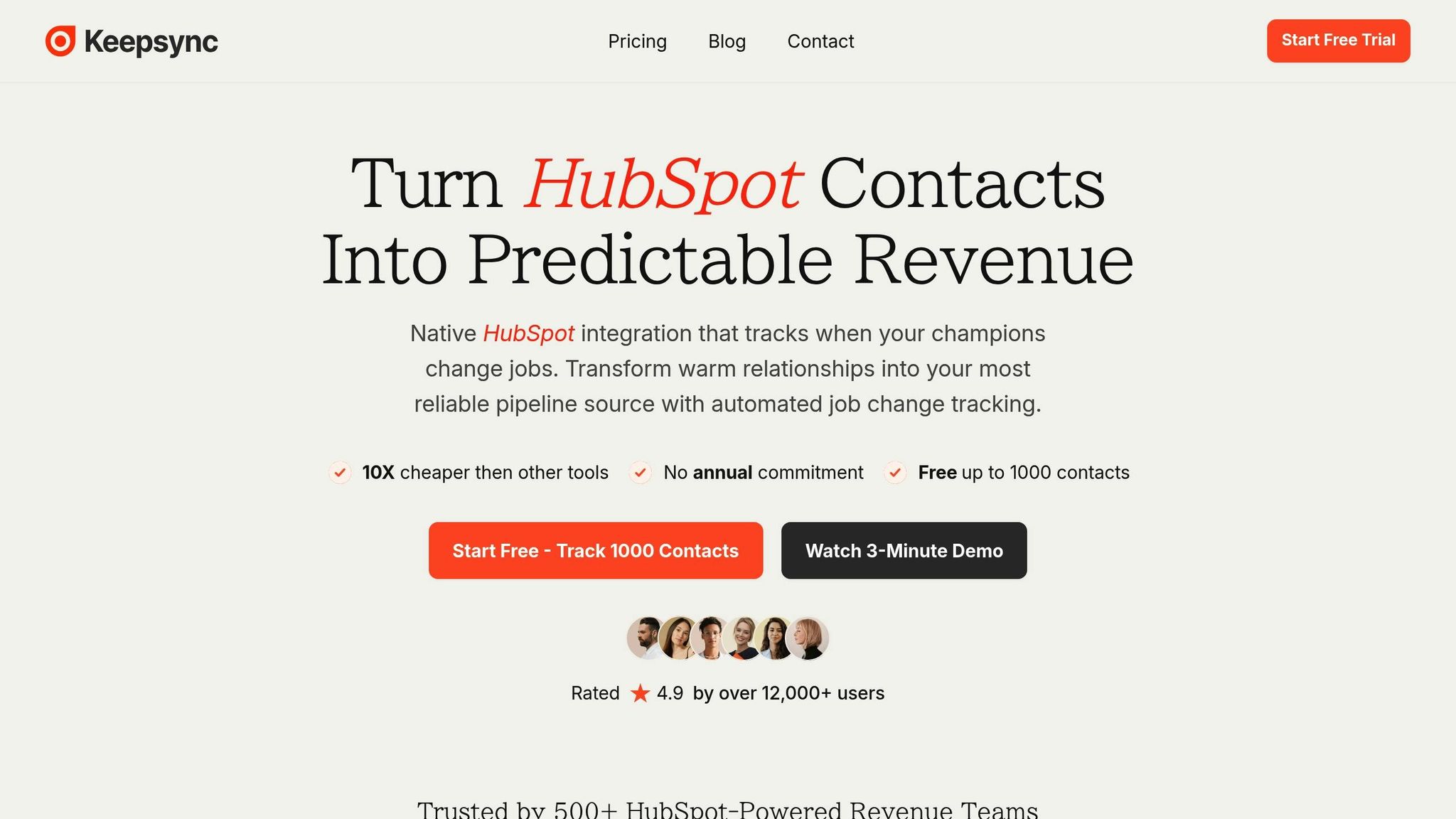
In HubSpot, go to Settings and connect KeepSync. During installation, make sure to select the HubSpot property where LinkedIn URLs are stored.
Map your HubSpot fields (like Job Title and Company Name) to their corresponding KeepSync fields. For fields that need updates, choose "Replace." If you want to preserve historical data, select "Complete only if empty."
Next, configure KeepSync’s automated actions. These include updating existing contact records, creating new company accounts when a contact changes jobs, or generating custom object records for advanced reporting. KeepSync tracks contacts weekly using over 30 data sources and achieves 94% accuracy through multi-source verification and human review.
Once KeepSync is set up, the next step is to configure real-time alerts.
Set up notifications to stay on top of job changes. You can choose to receive alerts through HubSpot tasks, Slack messages, or email.
For HubSpot tasks, create a dedicated "Job Change Signal" task queue. Assign these tasks automatically to the contact owner, including key details like the new job title and company.
If you prefer Slack notifications, use a HubSpot workflow triggered by job change task creation. Configure it to send updates to a specific channel, like #sales-signals, with the contact's name and a direct link to their HubSpot record. This ensures your team has real-time visibility.
To avoid overwhelming your team, apply Ideal Customer Profile (ICP) filters to your alerts. For instance, only trigger notifications when contacts move to companies that match specific criteria, such as a particular industry or employee count. This way, your team can focus on the most promising opportunities. Keep in mind, 89% of past customers don’t return on their own when they switch jobs[1], so proactive alerts can make all the difference.
Using job change data to automate sales workflows can help your team stay on top of opportunities without relying on manual tracking. Automation ensures no high-value leads are missed, allowing your team to focus on building meaningful connections.
Start by creating static lists in HubSpot to organize contacts you want to monitor closely. Focus on key groups such as current customers, former advocates, and closed-lost opportunities.
Label these lists clearly with names like "Product Champions", "Former Decision Makers", or "Closed-Lost Q4 2026." Clear labeling helps your team quickly identify who they're tracking. This segmentation makes it easier to prioritize outreach based on the history of the relationship and the potential size of the deal, laying the groundwork for automating outreach triggered by job change signals.
Once you’ve collected job change data, the next step is to turn those insights into actionable, automated workflows.
Use KeepSync properties in HubSpot to trigger workflows. For example, when "Job started since" is updated or "No longer at company" is marked as "True", your automation kicks off. Incorporate branching logic to tailor actions based on the contact's seniority. For instance, changes involving C-suite executives might demand immediate attention, while manager-level updates could follow a more measured approach.
Set up a Slack notification to alert your #sales-signals channel with the contact’s name and a direct link to their HubSpot record. Create a high-priority task in your "Job Change Signal" queue, assigning it to the account owner. For former customers who match your ideal customer profile (ICP), enroll them in a personalized "Job Change" sequence. Leverage tokens like {{contact.previous_company}} to make the outreach feel more tailored.
Add a layer of urgency to your automation. For example, include a 3-day delay before sending an automated congratulations email if the sales rep hasn’t completed their manual outreach task. This allows time for personal touches while ensuring no opportunity goes cold.
To improve reporting, consider using custom objects instead of just tasks. For example, create an "Intent" object in HubSpot to track job change signals. This allows you to measure pipeline and revenue influenced by job changes, demonstrating ROI and helping refine your strategy over time. Teams that leverage job change data often see a 10-50% increase in pipeline generation[1].
Lastly, make sure to enable re-enrollment in your workflows. If a contact changes jobs again, you’ll want to capture that signal too. Keep in mind that around 30% of the corporate workforce changes jobs annually[2], so staying proactive is key to maintaining a competitive edge.
Once workflows are automated, the next step is to evaluate their impact. Measuring the ROI of job change tracking involves analyzing specific metrics and leveraging HubSpot's reporting tools.
To understand the impact of job change tracking, focus on targeted metrics. Start by creating a custom HubSpot view that filters contacts based on job change properties like Job started since, Previous company, and Previous title. Use the Created by KeepSync property to identify contacts entering your pipeline due to job changes[3]. This approach provides instant insights into how job changes are influencing your pipeline.
Another useful strategy is setting up an "Intent" custom object with an "Intent Type" property labeled as "Job Movement." This allows you to measure how job change-triggered outreach affects your pipeline. For example, compare reply rates from job change-driven outreach to those from standard prospecting. Filter sequence analytics by Intent Type to get a clear view of reply rates specifically tied to job changes.
Additionally, monitor the boolean property No longer at company = True to gauge improvements in data hygiene[3]. This metric highlights the number of outdated contacts removed from active campaigns, which can enhance email deliverability and improve overall marketing efficiency.
These metrics can then be translated into actionable insights about revenue impact.
Use HubSpot's Custom Report Builder to create a dashboard that tracks response rates, pipeline created, and closed-won deals resulting from job change alerts. By joining "Deals" with "Intent" records, you can clearly see the pipeline generated from job change signals.
Research shows that past buyers are 5x more likely to convert into closed-won deals compared to cold leads[1]. Teams that adopt job change tracking often report a 10-50% increase in total pipeline generation[1]. To further validate this, compare the "Days to Close" metric for job change leads against cold leads. This comparison highlights how much faster warm opportunities progress through your sales funnel.
"Past buyers are 5x more likely to convert into closed-won revenue than cold leads." - Stuart Balcombe, Founder, ConnectedGTM[1]
Lastly, track conversion rates for job change leads separately to evaluate the effectiveness of leveraging these warmer relationships. This data can provide a clear picture of how job change tracking contributes to your overall sales efficiency and success.
Tracking job changes in HubSpot is reshaping how mid-market sales teams drive revenue growth. By automating the process of monitoring contact movements, teams can zero in on what truly matters - nurturing relationships with buyers who already trust their product. The numbers speak for themselves: past buyers are 5x more likely to convert than cold leads, and new executives allocate 70% of their budget within the first three months of starting a new role [1]. These opportunities are fleeting, making timely, automated outreach a game-changer.
With tools like real-time alerts, automated workflows, and data-driven filtering, sales teams can skip the manual LinkedIn monitoring and focus on engaging with contacts who truly align with their Ideal Customer Profile (ICP). This not only boosts pipeline growth but also speeds up the sales cycle [1]. Personalizing outreach by referencing past champions or reviewing previous HubSpot deal history adds a layer of relevance that resonates with prospects.
Beyond driving new revenue, job change tracking is invaluable for safeguarding existing accounts. When a key contact leaves, Customer Success teams can step in to engage their replacement before the account risks going cold. Likewise, opportunities that were previously lost can be revived when a contact transitions to a role with more decision-making power or budget authority.
What makes this approach so effective is its measurable impact. Metrics like response rates, pipeline creation, and time-to-close provide RevOps leaders with clear evidence of ROI while helping refine future strategies. With about 30% of the corporate workforce changing jobs each year [2], keeping contact data up to date isn’t just helpful - it’s essential for staying competitive.
For mid-market teams working with tight resources, automation transforms job changes from missed chances into a predictable revenue stream. Start using job change tracking today to seize these time-sensitive opportunities.
HubSpot's job change tracking feature is a game-changer for sales teams, automatically spotting when a contact transitions to a new role. It updates contact profiles with fresh details, sends timely alerts, and can even kick off automated follow-ups. This means sales reps can concentrate on the most promising opportunities while staying ahead in their outreach efforts.
By weaving job change insights into your sales processes, you can reconnect with warm leads, tailor outreach to align with their new roles, and strengthen relationships. These tools simplify your workflow, save valuable time, and turn more conversations into closed deals.
Setting up job change tracking in HubSpot takes a few straightforward steps to help your sales team spot and act on new opportunities efficiently. Start by tidying up your contact database and adding custom properties like "Previous Company" or "Job Start Date" to track career transitions. Then, create a static list, such as a "Job Change Watchlist," to monitor the contacts you’re most interested in.
Next, connect a job change intelligence tool to HubSpot and map its data fields to your custom properties. Use filters to keep your watchlist up-to-date, flagging outdated contacts and capturing new changes automatically. Finally, design a workflow that triggers key actions - like internal alerts, assigning leads to sales reps, or sending personalized follow-up messages - whenever a job change is detected. This system keeps your team ahead of the curve, turning career shifts into sales opportunities.
Job change tracking is a powerful tool for sales teams, ensuring your CRM stays current and your relationships remain strong. When a contact moves to a new role or company, HubSpot can flag the change and notify your team immediately. This allows you to update critical details like Job Title, Company Name, and Email, so you can avoid bounced emails, replace outdated contacts, and keep your renewal pipeline running smoothly.
One of the standout benefits of this feature is the ability to engage proactively. Automated alerts can remind account owners to send a personalized congratulatory message, discuss shifting priorities, or schedule a check-in. These timely interactions not only strengthen relationships but also uncover fresh opportunities and reduce the chance of losing the account to competitors.
Pairing job change tracking with churn-related metrics takes it a step further. By identifying accounts that might be at risk, you can focus your efforts where they’re needed most, potentially turning a loss into a retention success.