
Digital Marketing
·
April 10, 2026
How SaaS Companies Handle Billing Disputes & Chargebacks
Learn how SaaS billing disputes happen, what triggers chargebacks, and how both sides can resolve them faster.

Automate job-change detection in HubSpot to keep SDR pipelines current, prioritize outreach to high-value contacts, and convert more opportunities.


Key takeaway: Job change tracking in HubSpot, powered by KeepSync, helps SDR Team Leads stay updated on contact movements, ensuring timely outreach and stronger connections. With 30% of the workforce changing jobs annually, outdated CRM data can lead to missed opportunities. Automated tools like KeepSync eliminate manual research, detect job changes with 94% accuracy, and enable SDRs to engage contacts during critical buying windows.
Automating job change tracking can boost pipeline generation by 10-50% and triple the conversion of discussions into opportunities. By integrating HubSpot and KeepSync, your team can focus on building relationships instead of managing outdated data.
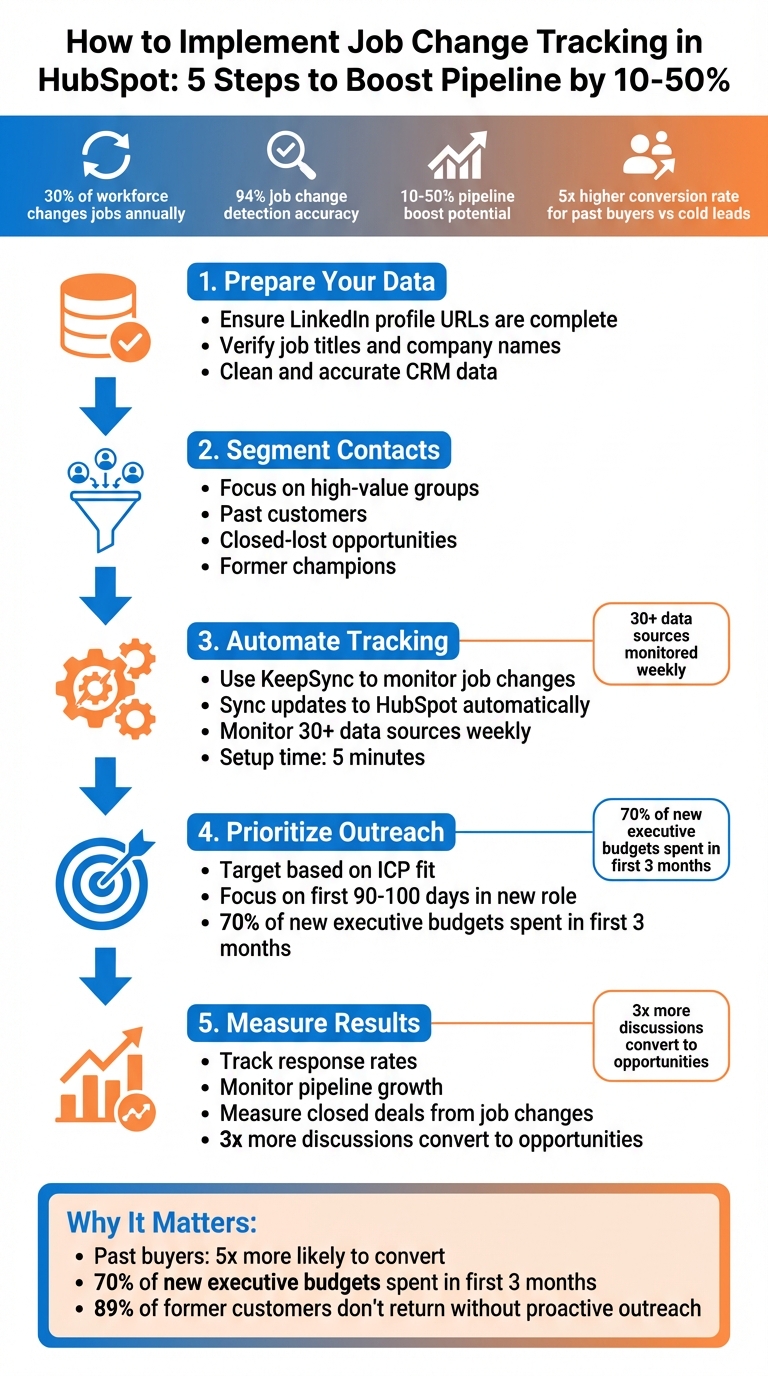
5-Step Job Change Tracking Implementation Process for HubSpot SDR Teams
FOR HUBSPOT TEAMS
Track Job Changes at 1/10th the Cost
KeepSync monitors your HubSpot contacts for job changes with 94% accuracy. Starting at $79/month. No annual contracts.
Start now →Getting started with job change tracking in HubSpot is straightforward. By connecting HubSpot with KeepSync and ensuring your contact data is clean and verified, you can set everything up in just 5 minutes - no technical skills required, just the right permissions and data.
Before diving into job change tracking, make sure you meet these key requirements. First, confirm you have "Write segments" permissions in HubSpot. This access lets you create and manage contact lists, which are essential for tracking. If you plan to use advanced features like property change events or custom objects for reporting, you'll need an Enterprise subscription for Marketing, Sales, Service, Data, or Content Hub.
The LinkedIn profile URL for each contact is the most important data point. It ensures accurate matching and minimizes errors when detecting job changes. If your contacts are missing LinkedIn URLs, enrich this data using tools like Apollo, ZoomInfo, or Waterfall.io. Without this information, tracking accuracy can drop significantly.
Next, verify that key properties - Job Title, Company Name, and Lifecycle Stage - are accurate and mapped correctly. These fields will automatically update when job changes are detected. During KeepSync setup, decide whether to overwrite existing values or update only blank fields. Clean data from the start ensures smooth updates later.
Once your data is verified, you’re ready to segment your contacts for targeted tracking.
With your data prepped, the next step is creating contact segments. These segments help you focus on your most valuable relationships, optimizing job change tracking in HubSpot. To get started, navigate to CRM > Segments in HubSpot and create an active segment (formerly called an active list). Active segments update automatically based on your criteria, making them perfect for ongoing monitoring.
Filter your audience to target high-value contacts, like past customers, closed-lost opportunities, or former champions familiar with your product. Use AND logic to narrow your focus (e.g., "Contact is a past customer AND Job Title is known") or OR logic to broaden your scope (e.g., "Contact is a former customer OR a closed-lost opportunity"). For example, if you want to track all former customers in the tech industry, you could filter by "Lifecycle Stage is Customer" and "Industry contains any of: Technology, Software."
To stay ahead of major shifts, enable segment notifications. These alerts notify you of unexpected changes in your list size, such as when a department is laid off or a company restructures. To activate this, go to your segment settings and toggle on notifications for irregular changes. HubSpot will flag unusual spikes and send you alerts.
Once your segments are ready, connect them to KeepSync. The platform will monitor your selected contacts weekly across more than 30 data sources, automatically syncing any job changes back to HubSpot. This automation keeps your CRM up-to-date, freeing up your sales team to focus on outreach instead of manual data entry.
Automating job change tracking eliminates the need for manual updates, freeing up your SDR team to concentrate on outreach. Once your contact segments are in place, the next step is setting up workflows that can detect and respond to job changes in real time.
Once your contact segments are ready, you can automate the detection process. Start by linking KeepSync to HubSpot, using the LinkedIn URL property as your main tracking identifier. This ensures accurate data matching across platforms. During the setup, map relevant HubSpot contact properties - like Job Title, Company Name, or custom fields - to KeepSync's data fields. Then, choose how updates should be applied: either replace existing data or fill in missing fields.
Next, configure triggers for changes in company name, job title, or LinkedIn URL. Decide how the system should handle these updates. Options include modifying existing contact records, creating new company accounts, or generating custom object records to track job changes and better understand which signals contribute to revenue growth [1].
To keep your team informed, set up automated tasks in HubSpot that notify SDRs right away. Assign tasks to the appropriate contact owner, prioritize them, and include details like the contact's previous and current roles. For instant communication, integrate with Slack or Microsoft Teams [3]. You can also filter alerts based on Persona or ICP criteria [2].
KeepSync scans your contacts weekly, pulling data from over 30 sources to compare LinkedIn job updates with HubSpot records. If it spots a mismatch - like a contact's LinkedIn profile showing a new employer while HubSpot still lists their old one - it triggers the workflow. This might involve updating the CRM, sending an alert to your team, or creating a task for immediate action.
The platform employs multi-source verification to achieve an impressive 94% accuracy rate. By cross-referencing contact information across domains and job histories, it minimizes false positives and ensures your SDRs focus on the most reliable leads. This accuracy helps your team prioritize efforts where they matter most.
When KeepSync identifies a job change, your HubSpot CRM automatically updates with the latest information, enabling SDRs to act on new opportunities. The key lies in how the system updates records and organizes data to help you prioritize the right contacts.
KeepSync uses HubSpot IDs to ensure updates are applied to the correct contact record, avoiding duplicate entries. When a job change is detected, properties like Job Title and Company Name are updated based on your configuration. The system also logs timeline events and creates tasks tied to the appropriate contact owner.
To maintain historical context without cluttering the main record, you can use a custom Intent object. This allows you to track details like the contact's Old Company, Old Job Title, and Start Date separately. This approach keeps the primary record clean and current while still preserving the full career history. SDRs can easily access past interactions and understand the contact's journey.
This streamlined visibility is particularly useful because new executives often allocate 70% of their budget within their first three months in a role [1]. Acting during this window can significantly improve your chances of building a strong connection.
Once updates are in place, the next step is creating custom views to monitor these changes effectively.
With automatic updates in place, custom views in HubSpot's Sales Workspace can help you track job changes more efficiently. For instance, you could create a saved view filtered by a job movement indicator or recent activity to identify contacts who have switched roles within the past 30 days. To prioritize your outreach, you can refine these views further by adding filters for ICP fit, seniority level, or relationship history.
Additionally, configuring the Lead Status property can streamline your process. For example, you can set up workflows to automatically mark contacts as "Brand New Lead" when a job change is detected. After outreach, the status can shift to "Attempted to Contact", helping your SDRs focus on the right tasks without guessing who needs follow-up and when. This automation ensures a clear and actionable task queue, keeping your team efficient and organized.
To focus your outreach efforts on the most promising opportunities, start by using your Ideal Customer Profile (ICP) as a guide. By combining job change signals with filters like company size, industry, seniority level, and relationship history, you can zero in on contacts who are more likely to convert.
For example, in HubSpot, you can create targeted segments by applying filters. Let’s say you’re looking for contacts in the "Software" industry, at companies with 50–200 employees, who recently changed jobs. This approach ensures your outreach is directed toward leads whose new companies align with your ICP. You can refine this further by adding filters like geographic region or job title to focus on decision-makers with budget authority.
Relationship history is another critical filter to leverage. Did you know that past buyers who move to new companies are five times more likely to convert into revenue than cold leads [1]? Prioritize contacts tagged as "Past Champions" or "Former Customers" to capitalize on their familiarity with your product or service. Similarly, keep an eye on contacts from closed-lost accounts - if they’ve moved to companies that better match your ICP, this could be your second chance to win them over.
Timing is just as important as fit. Use a time-based filter to target contacts who started their new roles within the last 90–100 days. This window is crucial because it’s when new hires are actively evaluating and purchasing solutions. Pair this timing metric with automated lead scoring to further refine your outreach strategy.
To make this process seamless, set up lead scoring in HubSpot to assign values based on factors like job changes and ICP alignment. Then, create a custom view, such as "High-Priority Job Changes", to consolidate these filters. Finally, configure workflows to automatically assign tasks to your SDRs, including key details like the contact’s previous company and new job title.
To effectively measure results, consider creating a custom "Intent" object in HubSpot instead of relying solely on notification counts. Custom objects offer the detailed reporting necessary to evaluate how job change signals impact deals over time [1].
Focus on three key metrics: response rates, pipeline generation, and closed-won revenue. For instance, you can design a vertical bar chart in HubSpot that categorizes "Intent Type" to identify the most impactful job change signals [1]. To measure ROI directly, track the total deal amounts where the "Intent" property is set to "Job Movements." Then, filter your deals report by "Deal Stage = Closed Won" and "Intent = Job Movements" [1]. These insights help you fine-tune your outreach strategy for better results.
Job change signals can play a powerful role in driving pipeline growth [1]. To leverage this, use targeted custom views to track departures and new appointments [5]. Make it a habit to monitor these views daily to keep your CRM data accurate and ensure timely outreach.
If you're using KeepSync, its pipeline analytics dashboard can automatically highlight the metrics that matter most. This tool helps you pinpoint which signals lead to the highest conversion rates. For example, if you notice that past buyers are converting at five times the rate of cold leads [1], you can adjust your strategy to dedicate more SDR time to following up with them. Similarly, if response rates start to decline, consider narrowing your outreach window to target executives within their first 100 days on the job - this is when they typically allocate around 70% of their budget [1].
To further optimize your workflow, align your team’s efforts with automated tracking systems. Create a dedicated "Job Change" task queue to ensure SDRs follow up promptly. Use this queue to monitor response times and address any bottlenecks in the process [1]. If you’re on HubSpot Enterprise, take advantage of the "Analyze" tab to track daily activity trends related to job change signals. This ensures consistent follow-through and helps your team stay on track [4].
Tracking job changes in HubSpot simplifies pipeline generation and relationship management by automating contact updates. Gone are the days of manually checking LinkedIn profiles - this process ensures no warm lead slips through the cracks.
Here’s why it matters: past buyers are five times more likely to convert, and new executives allocate 70% of their budget within the first three months [1].
By combining HubSpot's tools with KeepSync's automation - boasting 94% accuracy from monitoring over 30 data sources and delivering real-time alerts via Slack or HubSpot - SDRs can engage contacts precisely when they’re most likely to act.
Job change tracking doesn’t just improve efficiency; it completely reshapes your sales strategy. Signal-based selling can generate 10–50% more pipeline and convert up to three times more discussions into opportunities [1]. The secret? Automated data enrichment keeps your records accurate, allowing your team to focus on high-intent leads instead of wasting time on cold outreach.
KeepSync takes this a step further by filtering job changes based on your Ideal Customer Profile, presenting key signals through an easy-to-use dashboard. With approximately 30% of the workforce changing jobs each year [3], leveraging automation like this is critical to staying competitive in B2B sales. Armed with these insights, your SDR team can zero in on the right opportunities and consistently maintain a strong edge in the market.
KeepSync takes job change tracking in HubSpot to the next level by offering real-time alerts whenever a contact switches roles or companies. On top of that, it automatically updates and enriches contact records, keeping your CRM accurate and current without extra effort.
With up-to-date data at your fingertips, KeepSync makes it easier to spot new opportunities, reconnect with leads, and nurture strong client relationships - all while boosting your team's productivity.
Segmenting contacts who have recently changed jobs gives SDR teams the chance to focus on a highly relevant audience instead of viewing these updates as random bits of data. By creating dedicated lists or views for these contacts, you can prioritize outreach, set up automated notifications, and craft messages tailored to their new roles or companies. This targeted approach not only increases response rates but also reduces issues like bounced emails caused by outdated information.
By leveraging updated properties like Job Title, Company Name, and Email, you can even measure how outreach to these job-changers impacts key metrics such as pipeline growth, conversion rates, and revenue. Tracking these results helps showcase ROI, refine your sales strategies, and ensure your team follows up at the right time.
Moreover, having a clear segment in place enables automated workflows, such as real-time alerts to your team or follow-up sequences triggered by job changes. This makes your sales process more efficient, ensuring consistent, timely, and personalized engagement that keeps your pipeline strong and drives meaningful results.
When HubSpot detects a job change, SDRs should start by zeroing in on high-value opportunities. This means filtering notifications based on Ideal Customer Profile (ICP) criteria such as industry, company size, or seniority. By doing this, you ensure that only the most relevant job changes are flagged for outreach, saving time and effort. To make prioritization even easier, assign a custom Job-Change Score to each contact. Give higher scores to moves that align closely with your sales goals - like decision-makers transitioning to larger companies or roles that perfectly match your product offering.
Once you've identified high-priority contacts, automate your workflow to act fast. Use HubSpot to trigger key actions, like notifying the assigned SDR, creating personalized email templates that reference the contact’s new role, and moving the contact into a dedicated follow-up stage in your pipeline. This approach ensures SDRs focus on the most valuable leads, boosting ROI and speeding up the sales process. Engaging with job-change signals promptly can make a big difference in growing your pipeline.