
Digital Marketing
·
April 10, 2026
How SaaS Companies Handle Billing Disputes & Chargebacks
Learn how SaaS billing disputes happen, what triggers chargebacks, and how both sides can resolve them faster.

Set up job-change alerts in HubSpot, add custom properties, automate KeepSync workflows, and measure pipeline and revenue impact from job changes.

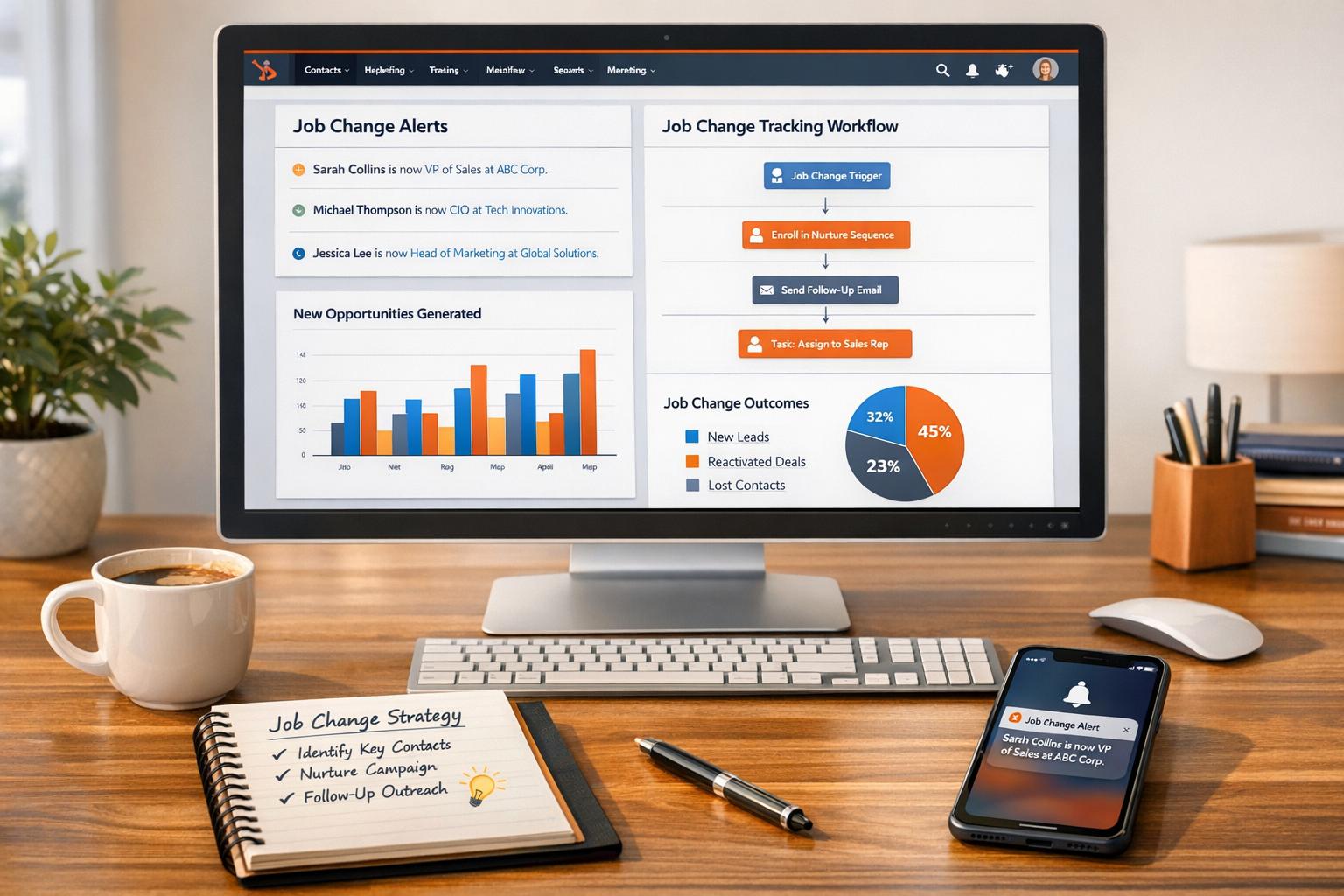
30% of the workforce changes jobs every year, and this turnover creates a huge opportunity for sales teams. When tracked correctly, job changes - whether contacts move to new companies or new hires join your target accounts - can significantly boost your sales pipeline. HubSpot, combined with tools like KeepSync, makes it easier to track these changes and act on them in real time.
Here’s the key takeaway: Past buyers are 5x more likely to convert into revenue than cold leads, yet most don’t return on their own when they change jobs. Using job change tracking, you can reconnect with former customers, create workflows to automate outreach, and measure the impact on your pipeline.
Companies using job change tracking report a 10%-50% increase in pipeline generation. Focus on past champions and decision-makers in their first 100 days at new roles to maximize results.
 Job Change Tracking in HubSpot" style="max-width:100%; margin:1em auto; display:block;">
5-Step Process for Setting Up Job Change Tracking in HubSpot
To effectively track job changes, start by ensuring your HubSpot CRM data is clean and well-organized. Even the most advanced automation tools won't work if your data is cluttered or inaccurate. Begin by tidying up your contact records to lay a solid foundation for tracking.
Start with a data audit to identify and retain accurate, up-to-date records. Look for outdated job titles, missing company names, or conflicting details and address them promptly [5]. HubSpot's duplicate management tool can help by automatically spotting duplicate contacts. If you're using Operations Hub, you can take it a step further by building custom-coded workflows for advanced deduplication [5].
Set up a dashboard to highlight contacts with missing owners, no recent activity, unassociated companies, or bounced emails [5]. For contacts who haven’t engaged with your last 11–16 emails, consider running a re-engagement campaign before deciding whether to remove them [5]. If you're on the Enterprise plan, enable Property Change Events for fields like Job Title and Company Name to maintain an audit trail of updates [1].
With clean data in place, you can create custom fields to track job changes more effectively. Head to Settings > Properties in the left sidebar, then choose Contact properties from the dropdown menu [7]. Add the following custom properties:
For the Job Change Date field, use the Date picker type to enable time-based reporting and workflow triggers [7]. When setting up the Previous Employer field, check the Show in global search results option to quickly locate contacts who previously worked at specific companies [7].
Active lists are a great way to keep track of job changes automatically. For example, you can create an active list for high-value contacts by filtering for those with "Champion Flag is true" or "Job Title contains Director, VP, or C-level" [8][9]. Another useful active list could focus on stale data, such as contacts whose properties haven’t been updated in nine months. Use this list to trigger surveys that confirm their roles [3].
Static lists, on the other hand, work well for one-time exports or organizing verified contact groups [8][9]. If you’re using LinkedIn Sales Navigator with Sales Hub Professional or Enterprise, you can check "time in current role" directly on contact records. This allows you to manually verify recent changes before adding them to a static list for outreach [6].
Managing thousands of contacts manually can quickly become overwhelming. That’s where KeepSync steps in, automating the process by directly integrating with HubSpot. It continuously monitors your contacts in the background, syncing seamlessly with your existing HubSpot workflows.
To get started, head to KeepSync's settings and select HubSpot as your CRM. Make sure to map your contact's LinkedIn URL property for accurate matching. You can configure KeepSync to update contact details, refresh account information, or even create new records when changes are detected.
Next, map key HubSpot fields like Job Title and Company Name to KeepSync's data fields. For stable properties like First Name, opt for the "Complete only if empty" setting to avoid overwriting existing data. For dynamic fields like Job Title or Employment Seniority, choose "Replace" to ensure they stay current. Import your HubSpot contact lists - whether active or static - to define which segments KeepSync should monitor. You can also enable automated enrichment to pull verified business emails and phone numbers from services like Apollo or ZoomInfo before syncing updates back into HubSpot.
Choose the HubSpot lists you want to track and define your target personas, such as C-suite executives or department heads. Use filters like geography, seniority, industry, and company size to fine-tune your monitoring rules. This ensures your sales team only receives alerts about relevant job changes, avoiding unnecessary distractions from contacts outside your target market.
Focus your efforts on executives within their first 100 days at a new company - this is often when they’re most open to exploring new tools and making purchasing decisions. Set triggers for specific alerts, like when a contact changes companies, updates their job title, or when a new LinkedIn URL is added to your database. KeepSync uses a "Waterfall" search method, prioritizing domain names to prevent duplicate account records in HubSpot.
Once your monitoring rules are in place, set up alerts to prompt timely sales responses. KeepSync can automatically create HubSpot tasks when job changes are detected, assigning them to the appropriate contact owner with customized titles and priority levels. You can even pre-fill task descriptions with relevant contact details, giving your sales team the context they need right away.
For instant updates, configure Slack notifications to inform your sales team of job changes without requiring them to constantly check HubSpot. Organize these alerts into a dedicated task queue, allowing sales reps to address them efficiently without disrupting their regular workflow. For a more comprehensive view over time, consider storing job change signals as Custom Objects in HubSpot. This approach enables better long-term reporting and analysis of intent data.
When KeepSync integrates job change data into HubSpot, you can set up workflows to take immediate action as properties like Job Title or Company Name are updated. To ensure you capture every change, enable re-enrollment so workflows can trigger multiple times as contacts update their information [11]. This setup creates a direct link between detecting job changes and initiating timely sales engagement, building on earlier data enrichment efforts.
Not all job changes are the same, and your response should reflect that. For instance, when a customer champion transitions to a new company, they carry their positive experience with your product.
Taimoor Tariq from Clay Club Berlin explains, "When a customer moves to a new company, they bring their positive experience with your product along with them. They're your best advocates, already familiar with your value proposition" [10].
To capitalize on this, create a workflow specifically for these high-value contacts. This workflow can immediately notify your sales team, ensuring they act quickly.
For contacts joining target accounts, design workflows that confirm whether the new company aligns with your Ideal Customer Profile (ICP). This could involve checking criteria such as employee count or industry before initiating further actions. In 2026, Tariq showcased a workflow for Blinkist that automatically verified new companies had over 100 employees, analyzed historical deal data from the contact's previous employer, and used AI to draft a personalized outreach message referencing their past product usage [10].
Once your triggers are set, use workflow logic to separate high-priority opportunities from routine updates. If/then branches can assess factors like the contact’s prior relationship with your company, the seniority of their new role, or whether their new employer is already in your database [12].
For existing customers who switch jobs, automate the creation of a Deal record using HubSpot’s "Create record" action. Be sure to include essential details like the Deal name, pipeline, and status [13]. Additionally, link contacts to their new company records by matching properties, and apply labels such as "Decision Maker" or "Influencer" to provide context [4].
For high-value champions, add an extra layer of review by including a manual approval step. For example, you can send a draft outreach message to Slack for review before enrolling the contact in a HubSpot sequence [10].
Workflows ensure that job change insights lead to tangible sales actions. Automatically create tasks with personalized details - like the contact’s previous company and new title - so your sales team has everything they need. If you’re using Sales Hub Professional or Enterprise, you can convert job changers at target accounts into Lead records and assign them to the appropriate pipeline stage [13][14].
Using the "Add timeline activity" feature when creating new Deal or Lead records can pull in the last 30 days of engagement history. This gives your sales reps immediate context, enabling them to reference past conversations and tailor their approach based on the contact’s previous interactions with your company [13]. This seamless connection between workflows and the sales process ensures no opportunity is missed.
Once you've set up automated workflows, it’s time to measure how job change insights are affecting your pipeline. Tracking key metrics will help you validate their impact and refine your strategy.
To get started, create a HubSpot dashboard with three essential reports:
If you're using HubSpot Enterprise, take advantage of property change events. For example, track updates to fields like jobtitle or company to log exact timestamps when KeepSync updates a contact’s details. This creates an audit trail that’s invaluable for reporting. Using a custom object like "Intent" instead of tasks gives you the flexibility to link data from Deals, Companies, and Intent records. This approach helps you zero in on which signals are driving revenue most effectively [1][2].
Companies that adopt job change tracking often see a 10% to 50% boost in total pipeline generated [2]. Once your workflows are in place, use KeepSync’s analytics to dig deeper into the financial impact.
KeepSync’s analytics go beyond standard HubSpot reports, offering insights that can help you fine-tune your process. For instance, you can segment conversion rates by Intent Type - like distinguishing between new hires and job changes - to identify which signals work best [2].
To calculate ROI, compare the total deal value from job change opportunities with your KeepSync subscription cost. For example, if you're on a $149/month Team plan and generate $50,000 in pipeline from 15 deals, the return is clear. You can also use HubSpot's "Weighted Amount" feature to forecast revenue more accurately [15].
Another key metric is sales cycle length. Compare the "Days to Close" for job change deals with your company average. Deals involving former customers often close faster, as 89% of previous customers don’t return on their own when they start a new role. Proactively tracking these movements can make all the difference [2].
Once you’ve measured ROI, use the data to refine your strategy. For example, if executives in their first 100 days consistently convert at higher rates, adjust your ICP filters in KeepSync to prioritize these contacts [2]. Similarly, analyze your data to determine whether certain segments - like former customers - are generating more pipeline. Use these insights to focus your efforts where they’ll have the most impact.
You can also evaluate performance by factors like industry, company size, or seniority. For instance, create vertical bar charts in HubSpot to visualize monthly pipeline by Intent records [2]. If certain signals underperform consistently, remove them from your monitoring rules to focus on opportunities that deliver better results. By taking a data-driven approach, you can turn job change tracking into a reliable engine for generating pipeline and revenue.
Tracking job changes transforms career shifts into actionable sales opportunities. Former customers, who statistically convert at higher rates, present a prime chance for re-engagement when approached strategically [2]. By streamlining the process, businesses can turn these insights into measurable results.
Here’s how to put this into action:
Companies that actively track job changes report a 10% to 50% boost in pipeline growth [2]. Additionally, new executives often allocate 70% of their budget within their first three months, making this an essential window for engagement [2].
Prioritize Ideal Customer Profile contacts, focusing on past champions and previously lost leads who now hold decision-making roles. Take advantage of HubSpot's custom objects to log job changes as distinct records, enabling detailed reporting and ROI analysis. Over time, refine your approach by studying which segments yield the best results and fine-tuning your monitoring rules to maximize impact.
Tracking job changes is a smart way to spot when former contacts step into new roles or join different companies. This opens the door to warm leads and helps you identify fresh decision-makers. With this information, you can reconnect with familiar faces, personalize your outreach, and even uncover upsell or cross-sell opportunities.
Incorporating job change alerts into your sales process lets you focus on leads with the highest potential, making your efforts more targeted and effective. This approach can lead to impressive pipeline growth - sometimes increasing it by 10–50%. It’s a strategy that not only saves time but also helps you get the most out of your resources.
To track job changes in HubSpot, start by making sure your contact data is accurate and well-organized. Fields like Job Title, Company Name, and Email should be filled in and formatted correctly. You might also consider adding custom properties, such as Previous Company or Job Start Date, to make tracking changes easier.
Begin by creating a static list of contacts you want to monitor, like a "Job Change Watchlist." This list will act as the core of your tracking system. Then, set up a second list specifically to capture changes, allowing you to identify and flag contacts whose job details have been updated.
Lastly, set up a property change event or workflow in HubSpot. This can trigger alerts whenever fields like Job Title or Company Name are updated. These notifications will keep your team informed and automatically update your results list, enabling you to respond quickly to new opportunities.
KeepSync takes the hassle out of tracking job changes by automatically keeping tabs on essential contact details like job titles, company names, and email addresses. It updates contact records in real-time, filling in custom fields like "Previous Company" or "Job Start Date", and instantly activates HubSpot workflows and alerts - all without any manual effort.
With this automation, your sales team stays up-to-date on career changes, making it easier to follow up quickly and turn career moves into warm lead opportunities.