
Digital Marketing
·
April 10, 2026
How SaaS Companies Handle Billing Disputes & Chargebacks
Learn how SaaS billing disputes happen, what triggers chargebacks, and how both sides can resolve them faster.

The right HubSpot integrations free up reps to sell more by automating scheduling, tracking job changes, payments, call analysis and AI forecasting.


HubSpot is already a powerful CRM, but when paired with the right integrations, it becomes a productivity powerhouse for sales teams. These tools eliminate repetitive tasks, automate workflows, and help your team focus on closing deals. Here’s what you need to know:
This article highlights seven essential integrations to streamline your sales process, from tools like KeepSync for job change tracking to Chili Piper for meeting scheduling. Each one addresses specific pain points, helping your team work smarter and close more deals.
Quick Overview:
These integrations transform HubSpot into a comprehensive sales engine, saving time, increasing efficiency, and driving revenue. Let’s dive into how each one works.

7 Essential HubSpot Integrations for Sales Teams: Features and Benefits Comparison
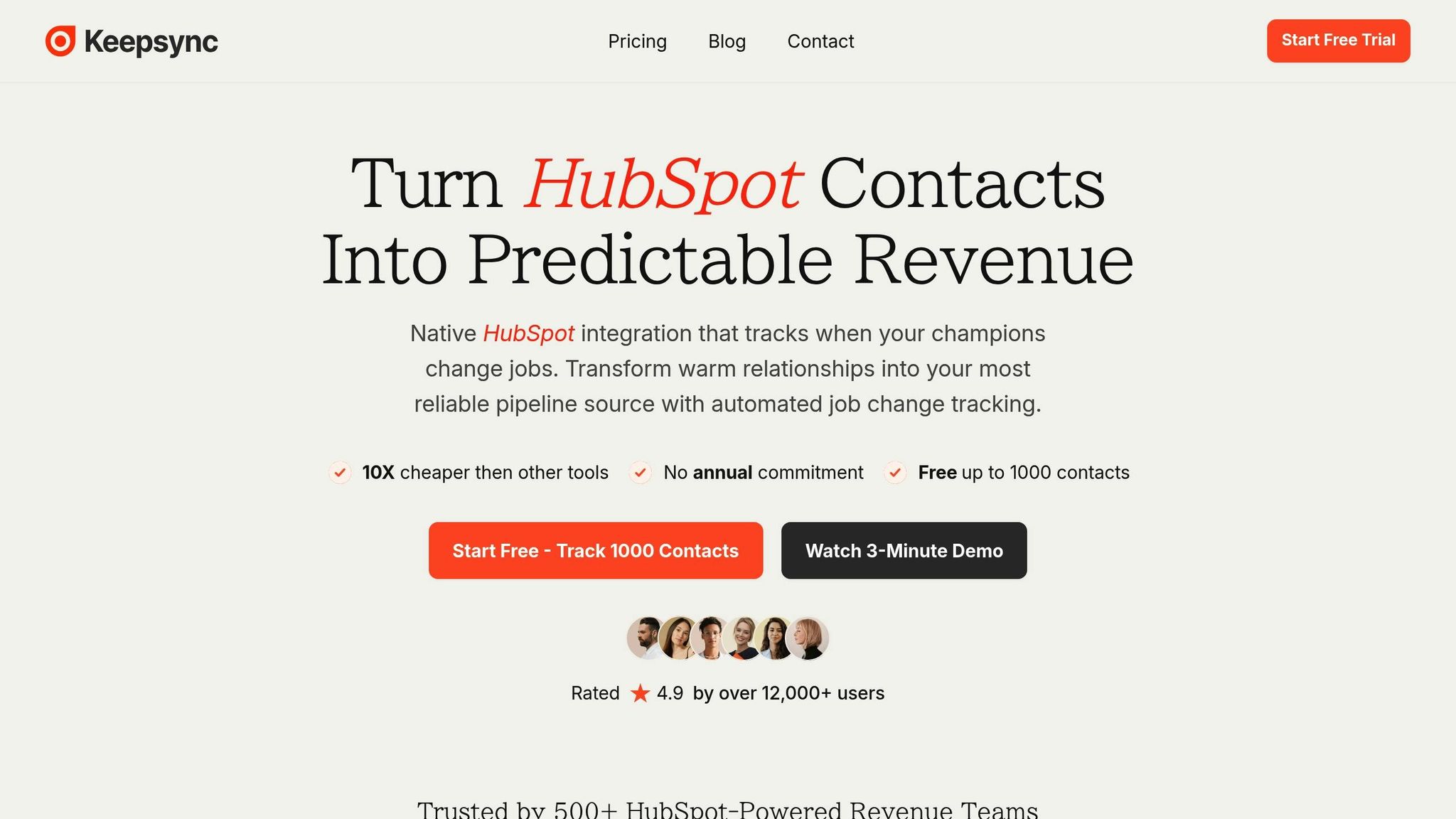
Tracking job changes manually can quickly become overwhelming, especially as your business scales. Without a system in place, 89% of job changes slip through the cracks for sales teams[4]. This means missed opportunities when a key contact, like a former champion, moves to a new company or when a decision-maker gets promoted. KeepSync simplifies this process by automating job change tracking without Salesforce lock-in. It monitors over 30 sources - including company websites and press releases - with an impressive 94% accuracy rate[4].
Getting started with KeepSync and HubSpot is quick and straightforward. The integration takes less than 5 minutes to configure and doesn’t require any technical expertise[4]. Here’s how it works:
Once set up, KeepSync imports your existing HubSpot contacts and begins weekly monitoring. The bi-directional sync ensures your CRM stays updated in real time, creating a solid foundation for automation.
KeepSync doesn’t just track job changes - it acts on them. When it detects a job change, it automatically creates leads or deals in HubSpot, complete with relevant context. Here’s what happens next:
This automation extends beyond new opportunities. For example, if a key stakeholder leaves a customer account, KeepSync can pause outreach and trigger a churn prevention workflow for your Customer Success team.
KeepSync equips sales teams with real-time alerts that include actionable insights. Notifications can appear in your HubSpot timeline, Slack, or email, such as:
"Job Change Alert: John Doe promoted to VP Sales at Acme Corp on 02/01/2026."
Each alert is enriched with verified information, such as:
Additionally, dashboard widgets provide an overview of trends, like executive turnover at key accounts, helping your team spot patterns and act strategically.
The numbers speak for themselves. Former champions convert 3× faster than cold leads. For example, Velocity Commerce closed two deals within 45 days by reconnecting with former customers who had moved to larger companies. Additionally, 36% of closed-lost deals can convert when timing improves, and weekly monitoring gives you a 30× speed advantage over quarterly updates[4].
One B2B software company with over 1,500 customers used KeepSync to automate job change tracking, uncovering hidden pipeline opportunities that were previously missed. With KeepSync, sales teams can focus on what they do best - closing deals - while the platform handles the heavy lifting.
Knowing when a prospect opens your email can make all the difference between sealing a deal or missing out. The HubSpot Sales Extension brings CRM functionality right into your Gmail or Outlook inbox, allowing you to track email opens and clicks in real time [5].
This extension is available to all HubSpot users, including those on Starter plan ($79/mo)s, and setting it up is quick and straightforward. After downloading it from the Chrome Web Store or Outlook Add-ins, you simply connect your email and calendar to HubSpot. Super Admins also have the option to set default tracking preferences for the entire team.
Once installed, your inbox gets a sidebar that displays CRM data for every contact you email. From this sidebar, you can access contact details, update properties, review recent activities, and even see the first 10 deals linked to that contact - all without leaving your email client.
This integration creates a smooth experience, ensuring your team stays updated with real-time information.
With real-time desktop notifications, you’ll know immediately when a recipient opens your email or clicks a link. This feature empowers sales teams to act quickly. For instance, some teams have shifted focus to accounts with multiple email opens, which has resulted in setting up meetings with key decision-makers [6].
The extension also automatically logs sent emails to a contact's record, including their associated companies and deals, so the entire team has a clear view of communication history. To ensure accuracy, it filters out bot activity, keeping your data clean and reliable.
By embedding tracking tools directly into your inbox, the extension reduces time wasted on switching between platforms, boosting efficiency. From your inbox, you can create tasks, associate emails with deals, log notes, and schedule meetings. For users with Professional or Enterprise seats, contacts can even be enrolled in automated sequences right from the email composer, simplifying multi-step campaigns.
Here’s a real-world example: Josh Harcus, Director of Channel at PandaDoc, tracked a lead for three months. When he noticed the prospect reopening old emails - indicating they were revisiting reference material - he reached out. This timely follow-up led to a meeting with the CEO and a finalized deal [6].
The extension also supports retroactive logging, allowing reps to manually add emails to the CRM if they weren’t tracked initially. However, keep in mind that email attachments over 50 MB won’t log to the CRM, though the email itself will still be delivered and recorded. Additionally, by enabling the "Fill contact details from emails with HubSpot AI" feature, the tool can automatically extract missing CRM details from email signatures, saving time on manual data entry.
Manage payments directly within HubSpot with the Stripe integration. This feature allows your team to create invoices, payment links, and quotes right in the CRM. With over 27,000 installs on the HubSpot App Marketplace, it’s a popular choice for teams looking to centralize customer and payment data in one system [10].
To set up Stripe in HubSpot, you’ll need Super Admin permissions. Once you have the required access, navigate to Commerce > Payments, select Stripe, complete the two-factor authentication process, and link your Stripe account [7]. Keep in mind that each HubSpot account can only connect to one Stripe account to maintain consistent financial data.
HubSpot applies a 0.75% platform fee per transaction, which is in addition to Stripe’s standard rates [10]. Transactions must meet a minimum charge of $0.50 or the equivalent in your settlement currency [7]. It’s also worth noting that this integration isn’t available in certain countries, including India, Brazil, Thailand, and the UAE [7].
Once Stripe is connected, automation kicks in to simplify financial updates. For example, when a Stripe invoice is created, HubSpot automatically generates a deal and updates contact records based on new payments or subscriptions [11][12]. This two-way sync for contacts and one-way sync for products (from Stripe to HubSpot) minimizes the need for manual data entry [8].
You can also build workflows triggered by Stripe events. For instance, set up alerts for failed payments or canceled subscriptions, enabling your team to act quickly on retention opportunities [11][10]. The system supports recurring billing on schedules like weekly, monthly, or annually, all without manual oversight [9]. Sales reps can further streamline processes by adding products to a shared library, and the integration accommodates international payments in multiple currencies [7][9].
Beyond automation, the integration provides detailed transaction data and alerts to keep your team informed. Stripe syncs key financial details to HubSpot, including gross amounts, net amounts, and processing fees [7]. This visibility gives sales and support teams a clear view of each customer’s purchase history. You can also configure internal notifications for payment events, such as successful collections or failed transactions, so account managers can respond promptly [7][14].
"Stripe transaction data will feed directly to your HubSpot, and your financial reporting will be accurate at a level that manual processes can't match." - Alan Chris, Konnectify [13]
The integration has a 3.3/5 star rating from 136 users on the HubSpot App Marketplace [10]. While users appreciate the ability to consolidate quoting, payments, and reporting in one platform, some have noted challenges during the initial setup [10].

Gong's call analysis tool takes your sales workflow to the next level by converting conversations into actionable insights. By recording, transcribing, and analyzing calls, Gong creates a seamless two-way sync with HubSpot [15]. This means no more manual note-taking - every detail is captured automatically.
Setting up Gong with HubSpot is straightforward. Use the Admin Center and OAuth authentication, which grants read/write permissions for HubSpot contacts, companies, deals, and pipelines [16]. To avoid potential issues, connect through a dedicated integration user account rather than an individual employee's credentials - this ensures continuity even if team members leave [18].
You can choose up to 50 specific HubSpot fields per object to import into Gong, providing the context you need while keeping system performance running smoothly [20]. Once configured, data syncs to HubSpot within hours [17].
If you're using Google Calendar alongside HubSpot, export calls as either "notes" or "calls" to avoid duplicate timeline entries [17]. Additionally, enabling stereo recording in HubSpot Telephony improves speaker identification accuracy [19].
This integration simplifies configuration and sets the stage for more effective call analysis, giving your team the insights they need to succeed.
With over 4,000 installs and a 3.6/5 star rating from 31 users [21], Gong has proven its value in enhancing sales productivity. It provides a complete history of customer interactions directly in HubSpot, enabling your sales reps to prepare without switching platforms. Managers can also create a library of successful calls, which can be used to coach new Business Development Representatives, helping them ramp up faster by learning from top performers [15].
"Using Gong has helped us as a team to learn from other calls, and having the added visibility of everyone's calls helps us to see how deals are progressing in the pipeline, and what questions clients are frequently asking." - Wendy Sly, Computer Software Professional [15]
Gong doesn't just boost productivity - it also delivers real-time insights. The "Call Spotlight" feature exports essential details to HubSpot, including an AI-generated brief, key highlights, an outline, and auto-generated action items [17]. Sales leaders can use a combined Deal Board featuring both HubSpot and Gong data to quickly pinpoint at-risk deals [15].
You can filter and search conversations using HubSpot-specific fields like deal stage, amount, region, or owner to uncover trends in successful deals [16][18]. Gong also tracks changes to critical HubSpot fields over time, showing exactly when and how key values - such as opportunity stage - shifted during the deal lifecycle [20].
"Gong is amazing – it has helped us close more deals and identify risk in others to better manage our pipeline." - Ray Rhodes, Computer Software Professional [15]
AI-powered forecasting takes the guesswork out of sales planning by using data to predict outcomes. By analyzing historical deal data, pipeline stages, and engagement signals, these tools deliver accurate revenue projections. Advanced AI models can achieve up to 95% accuracy by continuously adjusting forecasts based on real-time updates in HubSpot CRM [24]. Here's a closer look at how to set up AI forecasting in HubSpot and how it transforms sales operations.
With AI forecasting integrated into HubSpot, sales teams gain real-time insights that complement other automation tools. HubSpot’s built-in AI forecasting tool, Breeze, is available with Sales Hub Professional and Enterprise subscriptions [22]. Super Admins can activate it by navigating to Sales > Forecast > Analyze and selecting "Turn on AI forecasting." Keep in mind, the system needs at least 24 hours to gather and analyze data before generating forecasts [22].
If you’re looking for more advanced options, third-party tools like Forecastio can be connected through API authentication. Once linked to your HubSpot account, you can track specific pipelines and set monthly revenue goals [26]. These tools analyze historical data using machine learning, providing deeper insights through time-series analysis.
AI automation is a major time-saver, cutting down repetitive tasks and freeing up about 2 hours and 15 minutes daily for sales professionals. According to reports, 73% of sales reps experienced higher win rates after adopting AI tools [25].
Instead of relying on static stage probabilities, AI dynamically calculates win rates based on real-world performance. It evaluates each opportunity by factoring in deal age, engagement history, and past metrics. This level of detail helps sales reps focus on the most promising deals at the right time.
"The ability to rank your deals by probability of win, at over 80% accuracy is the differentiator here. Suddenly you stop guessing which deals to prioritize and double down." - Christopher Croner, Ph.D., Founder, SalesDrive, LLC [28]
AI forecasting simplifies workflows by automating updates to deal stages, amounts, and activities, reducing the need for manual data entry [23]. It calculates win probabilities for all active deals and generates forecasts with "Most Likely", "Upper", and "Lower" ranges. These forecasts are updated on a regular schedule, and the system flags potential risks so managers can step in early [22][24].
Every forecast update is logged with an automated audit trail, capturing any changes to amounts or dates for full accountability [24]. Risk detection features highlight deals stuck in certain stages or those with frequent close date changes, giving managers the chance to act before it’s too late [24].
For example, in 2026, Lattice’s sales team used AI to streamline business case creation by pulling data directly from call recordings into ready-made templates. This reduced prep time and boosted late-stage win rates by 25% year-over-year [27].
AI forecasting enhances decision-making by delivering dynamic insights. It provides three key projection ranges: "Most Likely", an optimistic "Upper" scenario, and a conservative "Lower" bound. These are based on historical closed-won data [22]. For individual deals, the system predicts win probabilities and the most likely close month, factoring in how long deals spend in each stage [23].
Pipeline health metrics track slippage rates, deal aging, and revenue leakage to identify potential losses [24]. Risk alerts notify managers of deals showing warning signs, allowing for timely action.
To ensure accurate forecasts, keep your CRM data up to date. AI predictions rely heavily on historical data, so it’s essential to compare projections with actual outcomes at regular intervals. This practice not only improves accuracy but also builds confidence in the system [22].
Connecting QuickBooks with HubSpot creates a seamless link between sales and accounting, offering a unified view of financial data. With over 14,000 installs, this native integration syncs contacts, products, and invoices in both directions. This means sales reps can easily check invoice statuses - like Sent, Paid in Full, or Overdue - right from their HubSpot deal timeline [32][29].
HubSpot’s guided setup simplifies the process of connecting to QuickBooks. You can choose which data to sync - contacts, products, or invoices - and decide between one-way or bi-directional syncing [34]. Updates made in HubSpot will reflect in QuickBooks almost instantly, while changes in QuickBooks sync back to HubSpot roughly every 30 minutes [29].
Before diving in, make sure to disable the "Custom transaction number" setting in QuickBooks Online. This step avoids conflicts with invoice numbers when HubSpot generates invoices. Syncing your product library first is also crucial to ensure line items are correctly tied to income and expense accounts [34]. If you want custom field mapping for invoices or contacts, you’ll need at least a Data Hub Starter subscription [34]. Once set up, this integration saves time and streamlines workflows.
Manual data entry in the quote-to-cash process can take up to 48 hours [37]. With the QuickBooks integration, sales reps can turn HubSpot quotes or deals into invoices in QuickBooks with just a few clicks. This drastically reduces the billing cycle. Plus, real-time payment status updates help reps prioritize tasks - like addressing overdue balances or accounts on "Credit Hold" - without delay [37].
HubSpot workflows take automation to the next level by generating QuickBooks invoices, sales estimates, or receipts based on specific triggers. For example, workflows can kick in when a deal is marked "Closed Won" or after an e-signature is completed [33]. If your team uses HubSpot Payments, workflows can also create paid invoices or sales receipts in QuickBooks, while accounting for payment processing fees. Advanced users can even set up draft invoice workflows, where HubSpot deals are sent to QuickBooks as drafts for review [36].
Once an invoice is marked "Paid" in QuickBooks, HubSpot workflows can trigger actions like onboarding sequences or thank-you emails, helping to improve cash flow [37].
"By directly connecting your CRM to your accounting software, you can streamline your invoicing and administrative processes through automation." – Lestraundra Alfred, HubSpot [30]
These features ensure smooth collaboration between sales and accounting, backed by a unified data system.
Invoices synced through the integration appear in a dedicated Invoice Object in HubSpot. This allows for contact segmentation, follow-ups, and custom reporting [31]. Sales reps also get real-time notifications when invoices are paid or overdue, either in HubSpot or through tools like Slack, ensuring no payment updates slip through the cracks [37]. By automating these processes, the integration minimizes manual errors and ensures pipeline values align with invoiced amounts [37].
For added security, you can enable QuickBooks’ option to lock closed accounting periods during syncs [29]. However, keep in mind that QuickBooks currently limits invoices to three custom fields due to API restrictions [35]. Also, QuickBooks Online workflow actions are only available for U.S.-based customers [33].
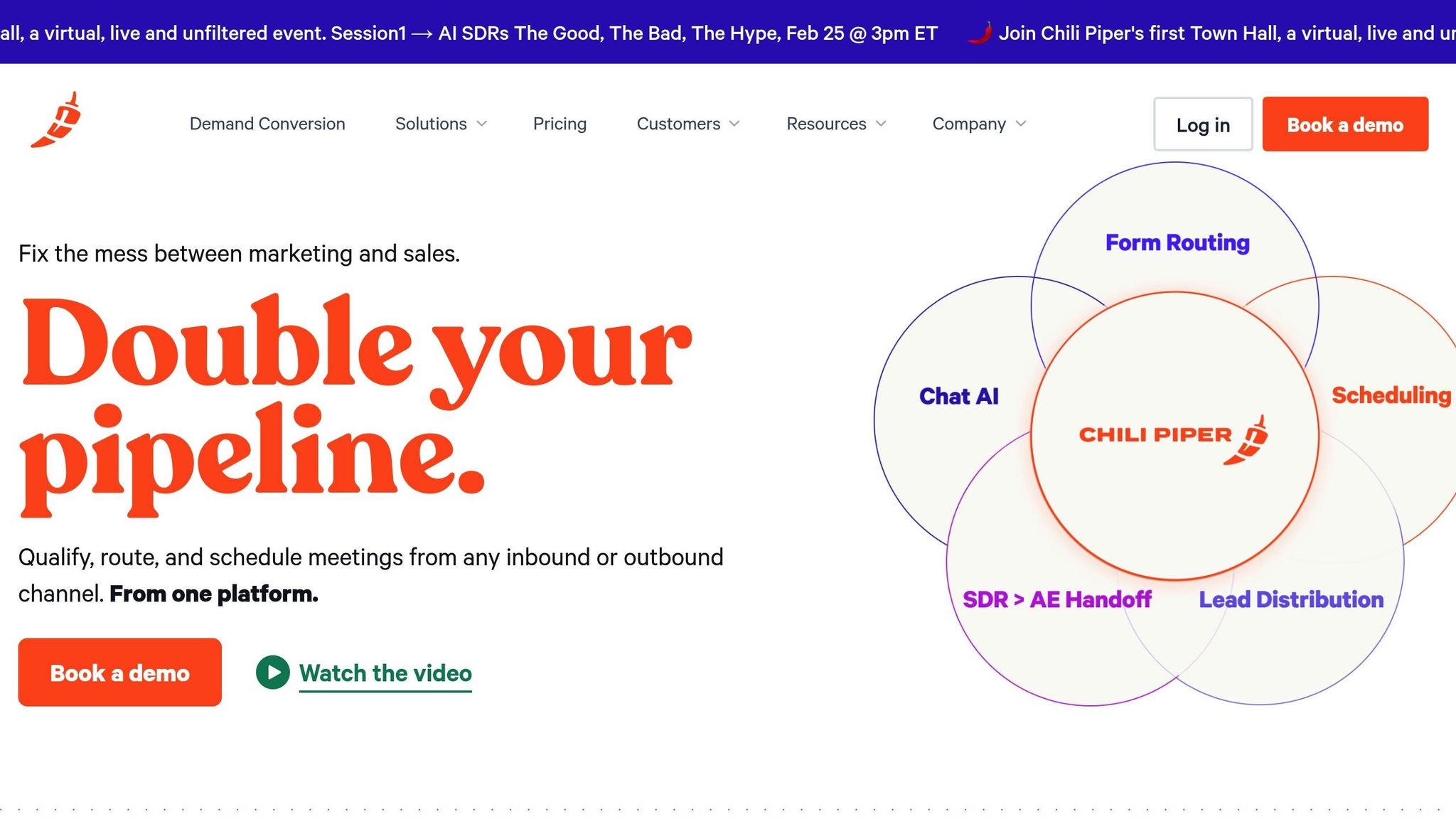
Chili Piper changes the game for sales teams by streamlining meeting scheduling and connecting seamlessly with HubSpot CRM. Thanks to a two-way sync, it uses HubSpot data for lead qualification and ensures CRM records are updated whenever meetings are scheduled, rescheduled, or canceled [39][40]. With a G2 rating of 4.6 out of 5 stars from 673 reviews, it's become a trusted tool for eliminating scheduling challenges [38]. Let’s dive into how to set up Chili Piper with HubSpot and make scheduling delays a thing of the past.
Chili Piper offers its services for $30 per user per month, alongside a $150 monthly platform fee. Using its Concierge tool, it taps into HubSpot form data to qualify leads and route them based on factors like territory, company size, or account ownership [41][38][40]. To get started, you’ll need to map all HubSpot form fields to Chili Piper, ensuring the router interprets lead data accurately [43].
The platform also allows you to configure CRM Actions to define how engagements and contacts are created or updated in HubSpot, keeping your records organized [43]. Meetings are automatically linked to relevant HubSpot objects - such as Companies, Tickets, or Deals - so activity history stays in context [42]. For global teams, Chili Piper supports 31 languages and locales [43]. Once set up, teams quickly notice smoother workflows and better meeting efficiency.
Companies like Apollo saw a 50% increase in inbound meetings and a fivefold boost in total meetings, while Grow reduced demo scheduling steps to just 2-3, achieving a 70% conversion rate [38][45].
The Instant Booker feature allows SDRs to schedule handoff meetings for Account Executives directly in HubSpot. By leveraging fields like account ownership, leads are routed to the right person, eliminating the usual back-and-forth emails that slow down the sales cycle [38][43].
Chili Piper integrates HubSpot CRM data into dynamic meeting templates and sends automated reminders to personalize the prospect's experience [39]. You can embed smart booking links in HubSpot emails, enabling prospects to schedule meetings without filling out repetitive forms [38][44]. Even better, one-click suggested times in emails can result in booking 13x more meetings compared to standard links [44].
"We were able to increase revenue by 10-15% just by optimizing our inbound process. Our approach really paid off because we optimized what we were already doing rather than going out and spending more money." – Inwoo Song, Director of Growth, Workato [38][40]
The platform's round-robin algorithm ensures leads are distributed fairly among reps, using HubSpot-defined territories [38]. Plus, the Vacation Calibration feature prevents overloading reps returning from leave by adjusting assignments in Workspace Settings [43].
Chili Piper’s two-way sync keeps HubSpot contacts updated and logs every engagement. Automated email or SMS reminders (such as a 10-minute alert) help reduce no-shows by over 50% [38][45][40][39][43]. For instance, Zvi Storch, Acquisition Marketing Manager at LawGeex, cut SDR meeting no-show rates by more than 50% and boosted SQL rates by 33% with these reminders [38][45].
"We've taken that whole 7-8 step demo scheduling process and turned it into a 2-3 step process. 70% of those that come in that are raising their hand are scheduling - that's a huge win for us." – TJ Nokleby, Director of Marketing, Grow [38][45]
The integration also delivers detailed reports on meetings and inbound conversion rates, giving sales managers clear insights into their opportunity pipeline [39][42]. This constant synchronization reinforces HubSpot’s role as the central hub for driving sales success.
Sales teams are constantly under pressure to maximize productivity while juggling administrative tasks. Automating repetitive work - like scheduling meetings, logging calls, and entering data - can free up to 25% of their workday for selling activities [2]. That’s about 2 hours and 15 minutes every day that can be redirected toward building relationships and closing deals [25].
CRM integrations offer measurable benefits. On average, automated workflows deliver an ROI of $8.71 for every dollar spent, driving 129% more leads and 36% more closed deals [1][25]. Companies using HubSpot’s centralized ecosystem report an average of 92% more closed-won deals after just one year [3]. These aren’t minor gains - they represent significant improvements in pipeline efficiency and sales forecasting.
By addressing bottlenecks with the right tools, businesses can unlock greater efficiency and revenue. For example, if manual data entry is eating into your team’s time, tools like KeepSync for job change tracking and Gong for call analysis can deliver immediate results. Similarly, if scheduling delays are slowing your sales cycle, Chili Piper can simplify the demo scheduling process. The goal is to ensure seamless bidirectional syncs so your CRM remains the single source of truth, while incorporating human oversight for AI-driven insights.
Each of these integrations transforms HubSpot from just another CRM into a full-fledged sales engine.
"My team has gotten 25–30% more revenue-generating activity (RGA) time because of sales automations." – Kyle Norton, CRO, Owner.com [2]
Start small by focusing on one or two high-impact workflows. Measure the results, refine your processes, and gradually expand. With the right approach, your HubSpot CRM can become a powerful revenue engine, allowing your team to spend more time closing deals and less time on tedious tasks.
Integrating your email system with HubSpot is often the smartest first step. Why? It allows for automatic logging of emails, replies, and contact details directly into the CRM. This makes it much easier to track conversations and manage follow-ups effectively.
After setting up email integration, it’s worth exploring productivity tools. These can help automate workflows, simplify lead management, and cut down on repetitive tasks, giving your team more time to focus on what matters most.
To link integrations with HubSpot, you'll usually need administrative permissions - like "Super Admin" access - to install apps and approve data sharing. For API-based setups, authentication often involves creating API keys or OAuth tokens to securely confirm access. These measures safeguard data exchanges and require explicit approval from users or admins to maintain the security of sensitive information and workflows.
Keeping your HubSpot data organized and accurate requires a mix of regular maintenance and smart systems. Start by conducting routine audits to identify and fix inconsistencies. Establishing clear naming conventions and protocols for handling duplicate records is also key to avoiding confusion.
Take advantage of automation for tasks like deduplication and formatting. HubSpot offers tools that can handle these processes, saving you time while maintaining data quality.
Another essential step is using HubSpot's data sync features. These tools help ensure consistency across records by matching data accurately with unique identifiers, like HubSpot IDs. By following these steps, you can reduce errors and maintain reliable data across your integrations.