
Digital Marketing
·
April 10, 2026
How SaaS Companies Handle Billing Disputes & Chargebacks
Learn how SaaS billing disputes happen, what triggers chargebacks, and how both sides can resolve them faster.

Automate HubSpot data enrichment, deduplication, job-change tracking, and workflows to maintain accurate CRM records without manual cleanup.


Your HubSpot database loses accuracy over time - about 30% of CRM data becomes outdated annually. Relying on manual fixes is time-consuming and error-prone. Instead, automation keeps your data accurate, saves time, and improves results. Here's how you can automate key processes:
Automating these processes ensures your CRM remains reliable, reduces wasted effort, and helps your team focus on meaningful work.
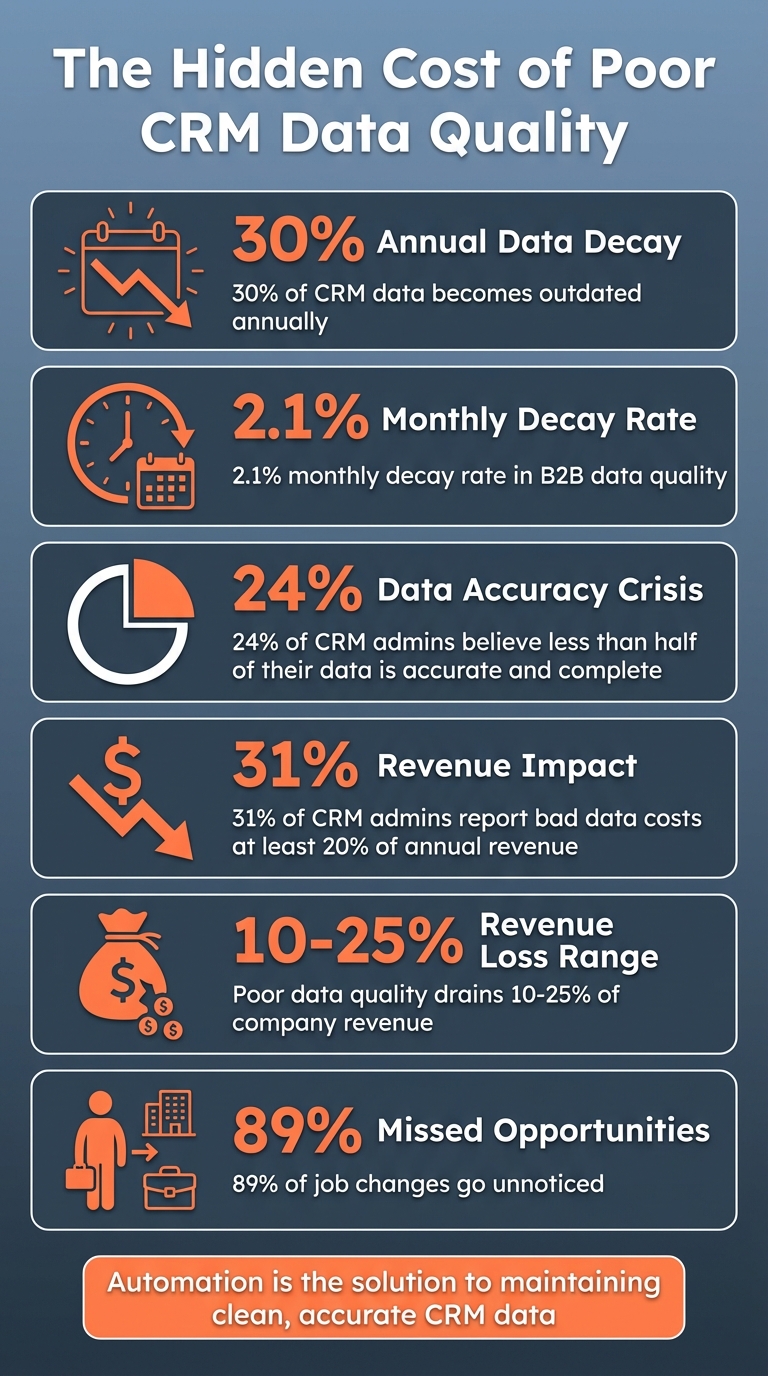
The Cost of Poor CRM Data Quality: Key Statistics

HubSpot’s built-in data enrichment feature takes the hassle out of manually researching contact and company details. It works by pulling information from public sources and third-party vendors, using AI to standardize details like job titles, company size, industry, and location. This means you can skip the time-consuming task of filling in missing data about your contacts and their employers.
Here’s how it works: the feature identifies contacts with corporate email addresses and companies with verifiable domains. Personal email addresses like Gmail or Yahoo won’t trigger enrichment, but corporate emails will. Once enabled, HubSpot automatically populates fields like annual revenue, employee count, and LinkedIn URLs. Plus, it refreshes this data monthly to combat the 2.1% monthly decay rate in B2B data quality [2].
Ready to get started? Below, we’ll walk you through enabling and configuring this feature in HubSpot.
Start by confirming that you have "Data enrichment access" enabled. Navigate to Settings > Users & Teams > Data Management to check. Then, head over to Settings > Data Management > Data Enrichment and toggle on both options:
Next, go to the Mapping tab to set overwrite rules for each property. For sensitive fields like First or Last Name, choose "Fill empty values only." For dynamic fields such as Job Title or Company Size, opt for "Fill empty values and overwrite existing values."
Lastly, use the Data Quality Command Center under Data Management > Data Quality > Data Enrichment. Click "Scan for enrichment gaps" to see which records are eligible for enrichment and identify any missing data in key properties.
Manual data entry often leads to inconsistencies. For instance, a sales rep might enter a job title as "VP of Sales", "Vice President, Sales", or "Sales VP." Automated enrichment fixes this by standardizing the data, making it more reliable for segmentation, reporting, and automation.
The benefits go beyond just organization. HubSpot research reveals that 24% of CRM admins believe less than half of their data is accurate and complete [2]. Automated enrichment fills in missing details across multiple properties simultaneously, ensuring your records are complete. This enables better workflows, more precise lead scoring, and smarter territory routing.
And let’s not forget the bottom line: poor-quality data can cost companies big. In fact, 31% of CRM admins report that bad data eats up at least 20% of their annual revenue [2]. By keeping your records accurate and complete, automated enrichment minimizes wasted time on bad leads, sharpens your targeting, and lets your team focus on high-value tasks instead of manual cleanup.
"Data enrichment adds information to your contacts and companies so you can maintain more complete and accurate data." – HubSpot Knowledge Base
The best part? Standard data enrichment is included with Starter, Professional, and Enterprise subscriptions across Marketing Hub, Sales Hub, Service Hub, Data Hub, and Content Hub. And it doesn’t consume HubSpot Credits.
After enriching your data, the next step is tackling duplicate records. Duplicates can skew your reporting and waste valuable resources. HubSpot helps by automatically preventing duplicates during form submissions and imports, matching contacts by email addresses and companies by domain names [8]. However, duplicates still sneak in - often when contacts use multiple emails or when data is imported inconsistently.
The bigger challenge lies in identifying duplicates already in your system. HubSpot’s duplicate management tool uses AI to compare records across various fields like first name, last name, email address, IP country, phone number, zip code, and company name [10]. Depending on your HubSpot plan, the tool displays different limits: up to 2,000 duplicate pairs for standard Professional accounts, 5,000 for Data Hub Professional, and 10,000 for Enterprise accounts [10].
One thing to note: HubSpot workflows don’t include a built-in Merge action. While you can flag duplicates, fully automating the merge process requires third-party integrations [10][9]. Still, HubSpot's tools can help you streamline the process and reduce manual effort.
The email address is your most reliable identifier for contacts. It’s unique, rarely changes, and serves as HubSpot’s primary deduplication property [8]. However, to catch all duplicates, combine email with other properties like phone numbers, LinkedIn URLs, or company names.
For companies, the Company Domain Name is the most reliable identifier. It’s unique and straightforward. If you’re working with franchises or multiple locations, add details like Street Address or Company Registration Numbers to differentiate between entities [9].
Once you’ve nailed down your identifiers, you can set up deduplication logic to make the cleanup process more efficient.
Start by cleaning your data before merging records. Remove placeholder values like "Test Test" or "123456789" to avoid false duplicate matches [9][12].
Next, exclude contacts who are currently active in workflows. Create a custom property, such as "Currently enrolled in important workflow", and use it to keep these contacts out of automated merging. Remember, merging contacts automatically unenrolls them from any active workflows [11], which could disrupt nurture sequences or sales cadences.
Once your data is clean, apply strict matching rules for automation. Use high-confidence identifiers, such as email address combined with phone number, to avoid merging unrelated records by mistake [9][10].
If you’re using Data Hub Professional or Enterprise, you can create up to two custom duplicate rules per object. For example, set a rule to flag duplicates when email and company name match, then prioritize merging in segments like current customers [8][14].
Finally, keep an eye on duplicate counts and their sources to refine your process over time [9]. Poor data quality can cost businesses anywhere from 10% to 25% of their revenue [13], so investing time in deduplication can deliver a quick return on investment.
After resolving duplicate records, it’s essential to stay updated on your contacts’ current roles. Studies reveal that 89% of job changes go unnoticed, which can lead to missed opportunities to reconnect with key contacts [15].
KeepSync tackles this issue by automatically monitoring your HubSpot contacts. It scans over 30 sources, including LinkedIn, company websites, and press releases, to identify job changes. The platform refreshes this data weekly, ensuring you’re notified promptly when updates occur [15].
With a 94% accuracy rate, thanks to a triple-verification process that includes human review for executive-level changes, KeepSync ensures reliable updates. When a job change is detected, it updates the corresponding HubSpot record with verified contact details. Plus, with a 97%+ email deliverability rate, you can confidently reach out to your contacts [15].
Once connected to HubSpot, KeepSync begins monitoring your contacts. The platform imports your existing records and tracks them across various sources on a weekly basis. If a contact changes roles, KeepSync updates their information - like job titles, company names, emails, and phone numbers - 30 times faster than monthly tools [15].
"Before this, we were completely blind to job changes. Our reps would manually check LinkedIn maybe once a month, and we'd constantly hear about champions moving to new companies weeks after the fact. Now we're first to reach out every time." – Marcus Rodriguez, RevOps Manager at Streamline Analytics [15]
Ready to integrate KeepSync with HubSpot? It only takes a few minutes.
Integrating KeepSync is quick and hassle-free. You don’t need technical expertise or developer assistance. Just connect your HubSpot account to KeepSync, and the platform will sync your contacts for monitoring.
You can start with the Starter plan ($79/mo), which tracks up to 1,000 contacts per month with weekly updates and email alerts. For teams with growing needs, the Team plan costs $149 per month (or $1,490 annually) and supports up to 5,000 contacts, adding features like Slack alerts, API access, and priority support. Larger organizations can opt for the Agency plan, priced at $399 per month (or $3,990 annually), which covers up to 20,000 contacts and includes white-label options and a dedicated customer success manager.
Once integrated, KeepSync can automatically create leads or deals in HubSpot when a job change is detected, triggering personalized sequences [15][16].
KeepSync ensures your team is informed immediately when a high-value contact changes roles. Notifications are sent in real time via Slack, email, or directly within HubSpot, enabling your team to take swift action.
"The ROI was immediate. Within 45 days, we had closed two deals from former customers who moved to bigger companies. Our SDRs love it because these are actual warm leads, not cold calls." – Sarah Kim, Director of Sales at Velocity Commerce [15]
You can customize alerts for specific segments, such as former champions, closed-lost decision-makers, or current customer admins. This helps prioritize outreach based on revenue potential. KeepSync also integrates seamlessly with HubSpot workflows, enrolling contacts in personalized sequences as soon as their job change is detected.
"With 1,500+ customers, manually tracking job changes was impossible. We were leaving money on the table every month. Now it's fully automated and integrated into our HubSpot workflows. Set it and forget it." – Julia Chen, VP Sales Operations at Nexus Software [15]
Having systems in place to flag potential issues before they disrupt your team’s workflow is key to maintaining clean data. HubSpot’s built-in alerts and lifecycle stage automation simplify this process, keeping your CRM organized without constant manual intervention. These tools work hand-in-hand with your enrichment and duplicate management efforts to ensure your data stays accurate and reliable.
Lifecycle stages help categorize contacts based on their position in your sales funnel - from a casual subscriber to a loyal customer. HubSpot provides seven default stages: Subscriber, Lead, MQL, SQL, Opportunity, Customer, and Evangelist [17][20]. However, you can tailor these stages to align with your unique sales process.
To streamline your workflows, enable cross-object syncing. Go to Settings > Objects > Contacts > Lifecycle Stage and check the option for "Sync lifecycle stages." This ensures that when a company’s lifecycle stage changes, all associated contacts are updated automatically [18][19]. Additionally, activate the "Set lifecycle stage when a contact or company is created" option to make sure every new record is categorized immediately, avoiding blank entries [18].
HubSpot also generates useful properties like "Date entered [stage]" and "Latest time in [stage]" for each lifecycle stage [20]. These properties can power workflows that trigger alerts when contacts remain stagnant. For example, if a contact has been in the SQL stage for over 30 days, you can set up a workflow to notify the sales rep to review and update the status.
Once your lifecycle stages are set, focus on creating automated alerts to catch data inconsistencies or gaps.
HubSpot’s Data Quality Command Center is a great tool for spotting formatting issues, duplicates, and unused properties. To activate it, go to Data Management > Data Quality, locate the "Recommended Actions" section, and click "Set it up" under Data Quality Digest [3]. You can configure a daily duplicate threshold (e.g., 10 records) and assign notifications to prevent duplicate overload [3][5].
You can also design validation workflows to identify missing or incorrectly formatted data. For instance, build a workflow that enrolls contacts where the "Industry" field is blank and assigns a task to the contact owner for manual follow-up.
To address inactive records, create a workflow triggered by the "Last activity date" exceeding 90 days. This will alert your team to review the contact’s information and decide whether to update it or archive the record [1]. These automated processes save time and ensure your database remains up-to-date without requiring constant manual oversight.
"By maintaining a clean database, you empower your teams with reliable data, enabling them to focus on building meaningful connections and driving revenue instead of wasting time on data cleanup tasks." – Sean McGauley, CEO, Growth Spurt [4]
After setting up your data quality alerts and lifecycle stages, the next logical step is creating workflows that automatically manage your database over time. These workflows build on your automated enrichment and deduplication processes, ensuring your database stays clean and organized. Think of them as reusable templates - whether you're standardizing data formats, filling in missing information, or removing inactive records, these workflows keep things running smoothly without relying on manual intervention.
HubSpot's Format Data action is a great tool for cleaning up inconsistencies like all-caps names or irregular company titles. You can also use custom formulas to standardize phone numbers by stripping away special characters for a cleaner, uniform look [21].
The Enrich Record action is another powerful feature, allowing you to automatically fill in missing details like job titles or industries [7][22]. When setting up enrichment mapping, you can fine-tune how updates are applied. For instance, choose "Fill empty values only" for sensitive fields like names to avoid overwriting manually entered data. For dynamic fields, like job titles that frequently change, opt for "Fill empty values and overwrite" to ensure the most current information is always reflected [7].
For contacts that have been inactive for over 90 days, create workflows to re-engage them through nurturing emails. If they remain unresponsive, the workflow can archive or delete these records automatically [4]. When activating these workflows, make sure to enroll existing contacts that meet the criteria. This ensures an immediate cleanup of your current database [4].
To complement these bulk updates, leverage KeepSync for ongoing, real-time data maintenance.
While bulk updates handle existing inconsistencies, KeepSync ensures your database stays accurate as changes happen. This job change tool for HubSpot integrates seamlessly with workflows, keeping records updated by tracking customer job changes in HubSpot. It monitors contacts weekly across more than 30 data sources and updates records with 94% accuracy when changes are detected.
KeepSync uses verified data from multiple sources, which are dynamically scored and reviewed by a human quality assurance team [6]. When it identifies a job change, it enriches the contact's record with updated details like new email addresses, phone numbers, and company information. You can even configure workflows to take specific actions when these updates occur - such as assigning the contact to a new sales rep or launching a re-engagement campaign. Since KeepSync refreshes enriched data monthly, your workflows stay up-to-date without requiring additional maintenance [7][6].
By leveraging automated enrichment, deduplication, and job change tracking, you can keep your HubSpot data accurate and dependable without manual intervention. Combining HubSpot's automation tools with KeepSync's job change tracking ensures your CRM stays clean and up-to-date. HubSpot's Data Quality Command Center works in the background to identify and resolve common issues like formatting errors, duplicates, and missing data, taking care of these problems automatically [5].
KeepSync adds another layer by continuously updating contact details when job changes occur. With 94% accuracy and weekly monitoring across over 30 data sources, it enriches your records with updated email addresses, phone numbers, and company details. These updates can then trigger HubSpot workflows, enabling your team to act on fresh data immediately.
"Poor data quality is a hidden tax on every operation in the company." - Łukasz Kidoń [23]
The cost of ignoring data quality is steep. Studies show that poor-quality data can drain at least 20% of a company's annual revenue, and 31% of CRM administrators report that inaccurate data significantly hampers revenue performance [2].
Don't forget to set up your weekly Data Quality digest in HubSpot's notification settings to receive automated health reports on your CRM [5]. Pair this with KeepSync's real-time job change alerts via Slack or email, and you'll achieve a clean, reliable database that saves time and builds trust across your teams - without the manual workload.
To make your sales and marketing efforts more effective, start by improving the quality of your contact and company data. Focus on gathering key details such as company size, industry, revenue, employee count, headquarters location, and contact information. These insights help teams identify the right accounts to target and refine their reporting.
To maintain accuracy, consider setting up automated processes for data enrichment. This is crucial because CRM data tends to degrade at a rate of 2-3% per month, which can quickly result in outdated or unreliable information. By keeping your database current, you’ll ensure your teams are always working with the most relevant data.
To keep your HubSpot database clean and organized, take advantage of the Data Quality Command Center to spot and handle duplicate records before they become a problem. HubSpot also helps by automatically deduplicating contacts and companies during form submissions or imports, relying on identifiers like email, user token, or domain. For continued maintenance, the duplicate management tool - available in Professional and Enterprise accounts - makes it easy to locate and merge duplicates. Additionally, when importing data, ensure you use unique identifiers like email addresses to avoid creating duplicates.
To set up workflows for job changes in HubSpot, tools like KeepSync can help automate alerts and actions. You can create custom properties, such as "Job Change Detected Date," and design workflows to monitor updates in job titles or employers. KeepSync works seamlessly with HubSpot, identifying job changes, enriching contact details, and triggering automated follow-ups. This ensures your CRM remains up-to-date, and your outreach stays relevant and timely.